
How to View your Full TransUnion Credit Report
Step-by-step tutorial on how to access your full TransUnion credit report through AnnualCreditReport.com
A credit report provides a detailed history of your financial relationships with banks, lenders and other entities. They are compiled and maintained by companies known as credit reporting agencies (CRAs) — the three largest being TransUnion, Equifax and Experian. While you have likely viewed your credit report through a personal finance website or banking app, these versions may not contain all of the information included in a credit report that you request directly. That's why it's important to understand how to access your own copy and ensure that you're truly on top of your finances.
AnnualCreditReport.com is the only website authorized by the federal government to issue free credit reports from all three CRAs.
This guide will show you how to download your full TransUnion credit report. For the other CRAs, please follow the links below. The process is very similar across all three providers. In fact, steps 1–4 are exactly the same regardless of which CRA you choose. If you're already familiar with those steps from another guide, you can skip ahead to step 5.
1. Visit AnnualCreditReport.com
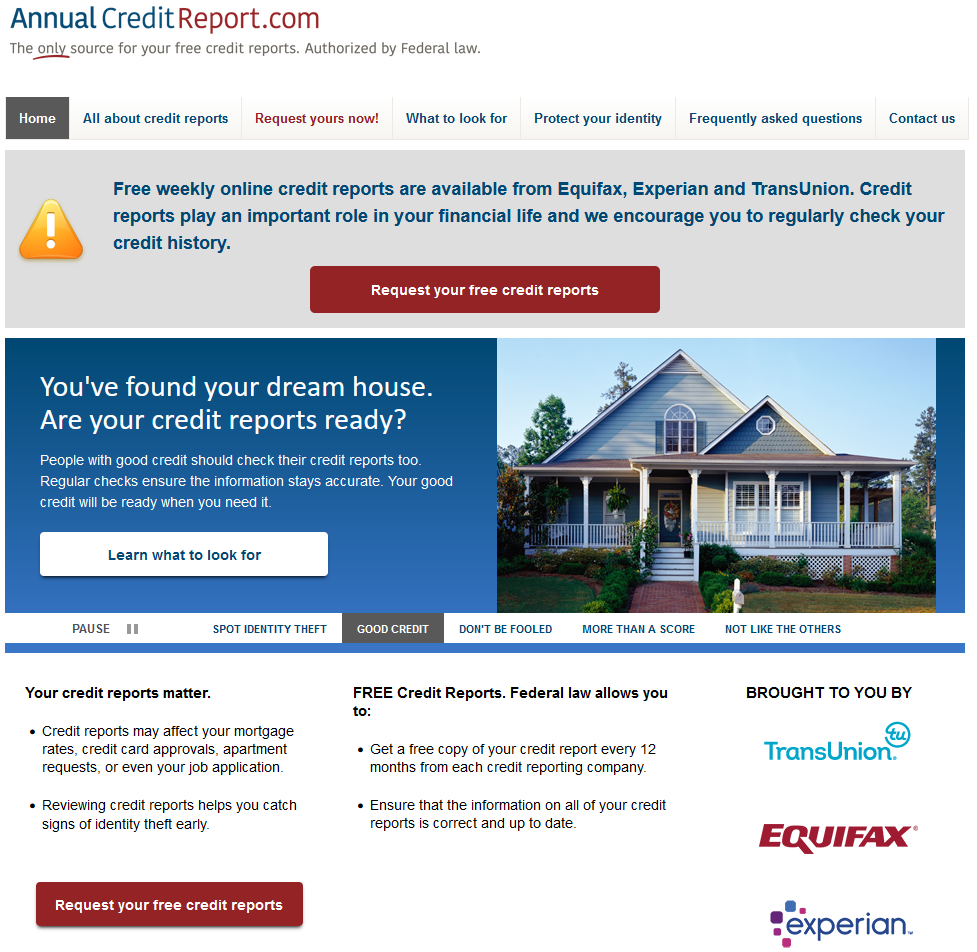
In your browser, navigate to AnnualCreditReport.com. The website itself looks quite dated, which you might say is typical of a government (or, in this case, government-mandated) website. On the positive side, you're not distracted by additional products or services. The only thing you can really do on the site is request your credit report, so it's difficult to go down the wrong path.
Click one of the many icons or links asking you to "Request your free credit report".
2. Start Request Process
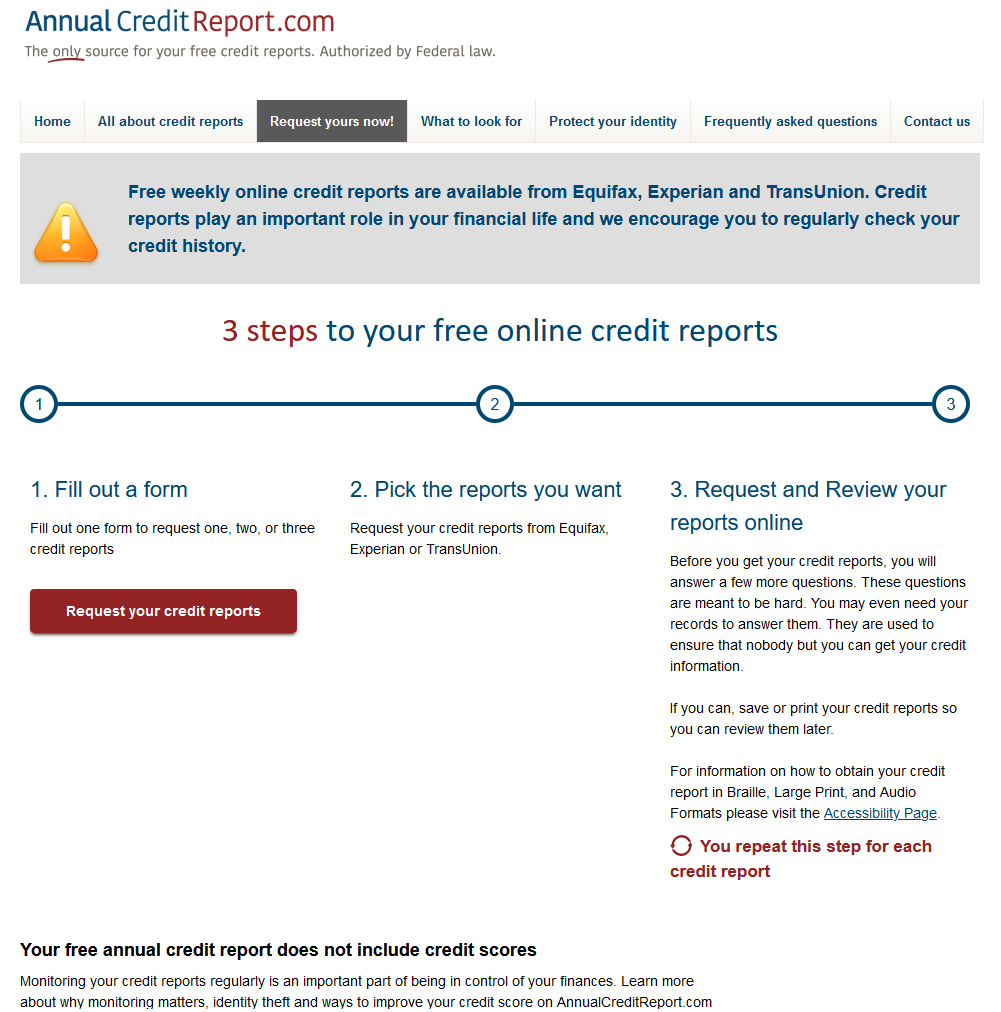
If you followed the previous step, you'll be taken to this page. It outlines the process for obtaining your credit report(s) from the website. Once you've read the information, click the red "Request your credit reports" button.
3. Fill Out Personal Information Form
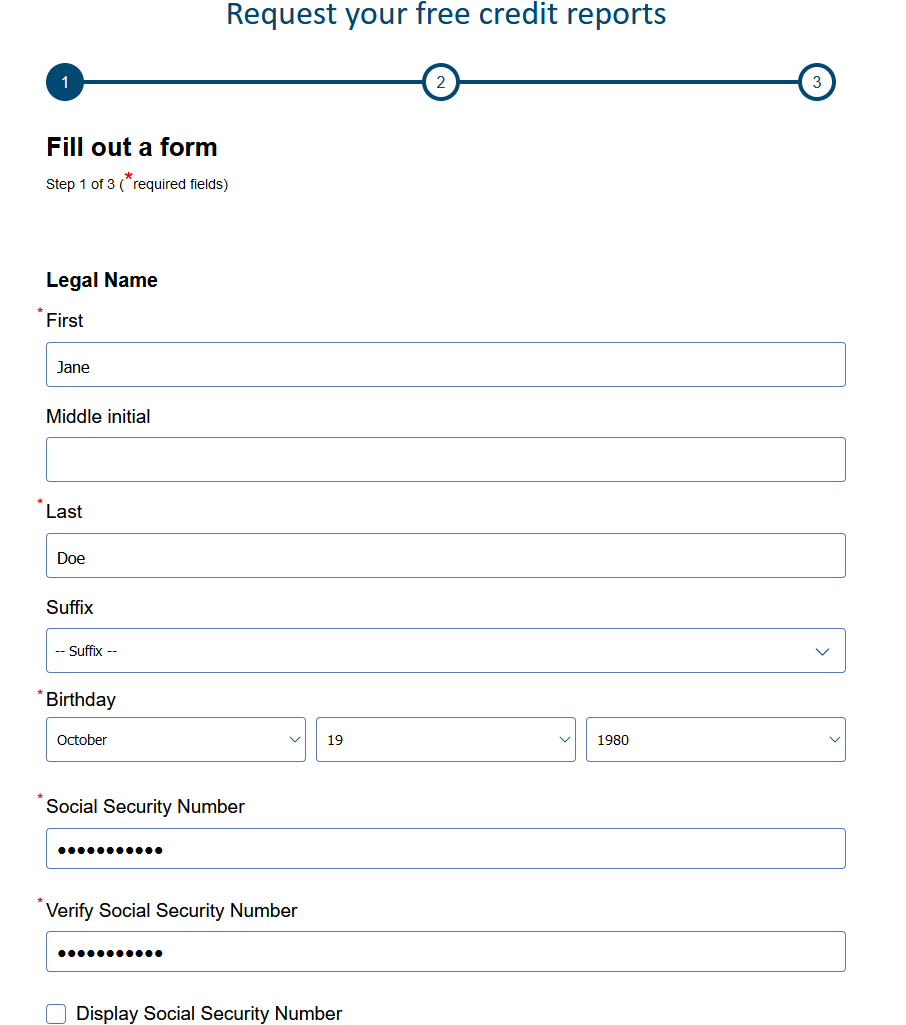
To retrieve your credit report, you'll need to provide some personal information. This includes your name, date of birth, Social Security number and current address. If you have lived at your current address for less than two years, you should also provide your previous address.
You may not have updated your address with every lender, or a lender may not yet have reported the change to the CRAs. Including your previous address increases the likelihood of being matched successfully. Once you have provided the necessary information, click Next at the bottom of the page.
4. Select Credit Reporting Agencies (CRAs)
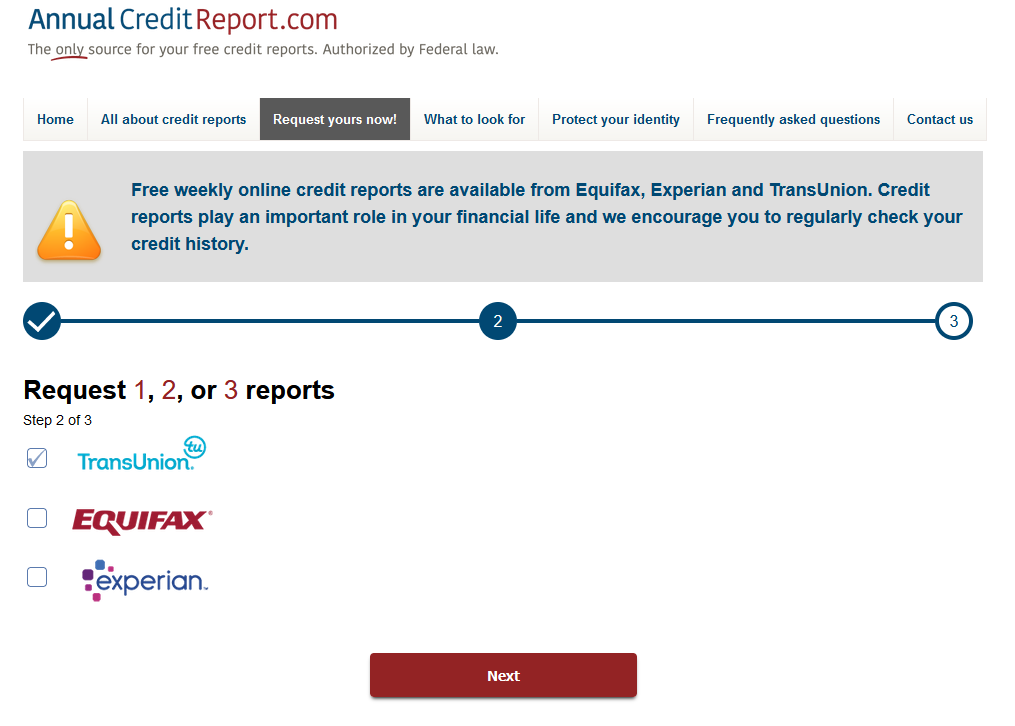
As previously mentioned, AnnualCreditReport.com is the only website authorized by the federal government to issue free credit reports from the three major CRAs: TransUnion, Equifax and Experian.
For this step, you must select the CRA(s) from which you wish to retrieve your credit report. No CRA is inherently better than the others. Many lenders only report to one or two CRAs, so the information held by each provider can differ. To get the most complete picture of your financial history, we generally recommend selecting all three CRAs.
Once you have made your selection, click Next to continue. At this stage, you will initiate the process with the first CRA that you selected. If you selected all three, as suggested, you'll start with TransUnion. Each CRA requires its own identity verification step. However, as this guide focuses on TransUnion, we'll only select TransUnion.
- Guide to receive your Experian credit report online
- Guide to receive your Equifax credit report online
5. Provide Additional Information for Identity Verification
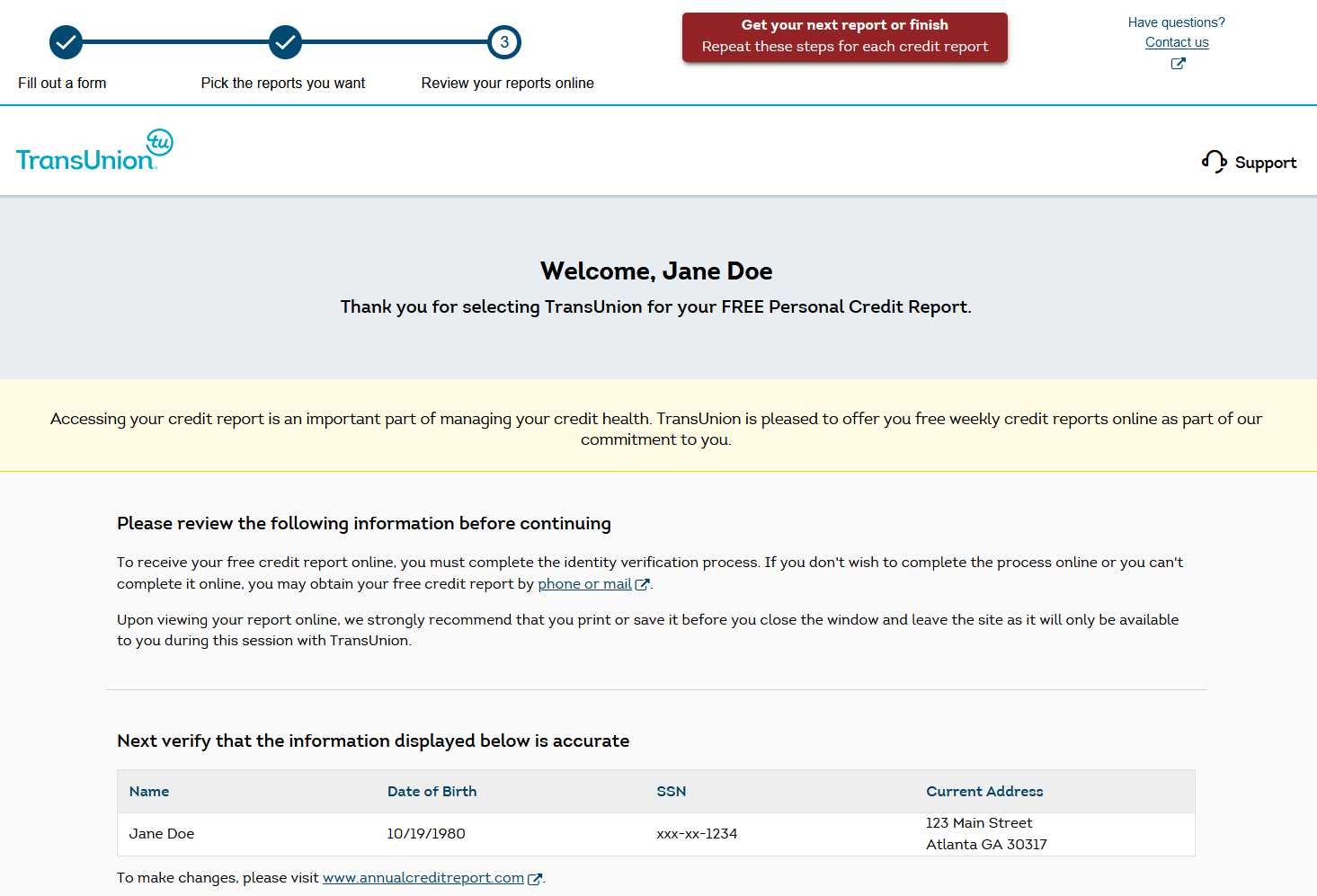
You should see the TransUnion logo near the top of the page. From this point onward, you are communicating with TransUnion through AnnualCreditReport.com. You can think of it as the TransUnion website embedded within AnnualCreditReport.com.
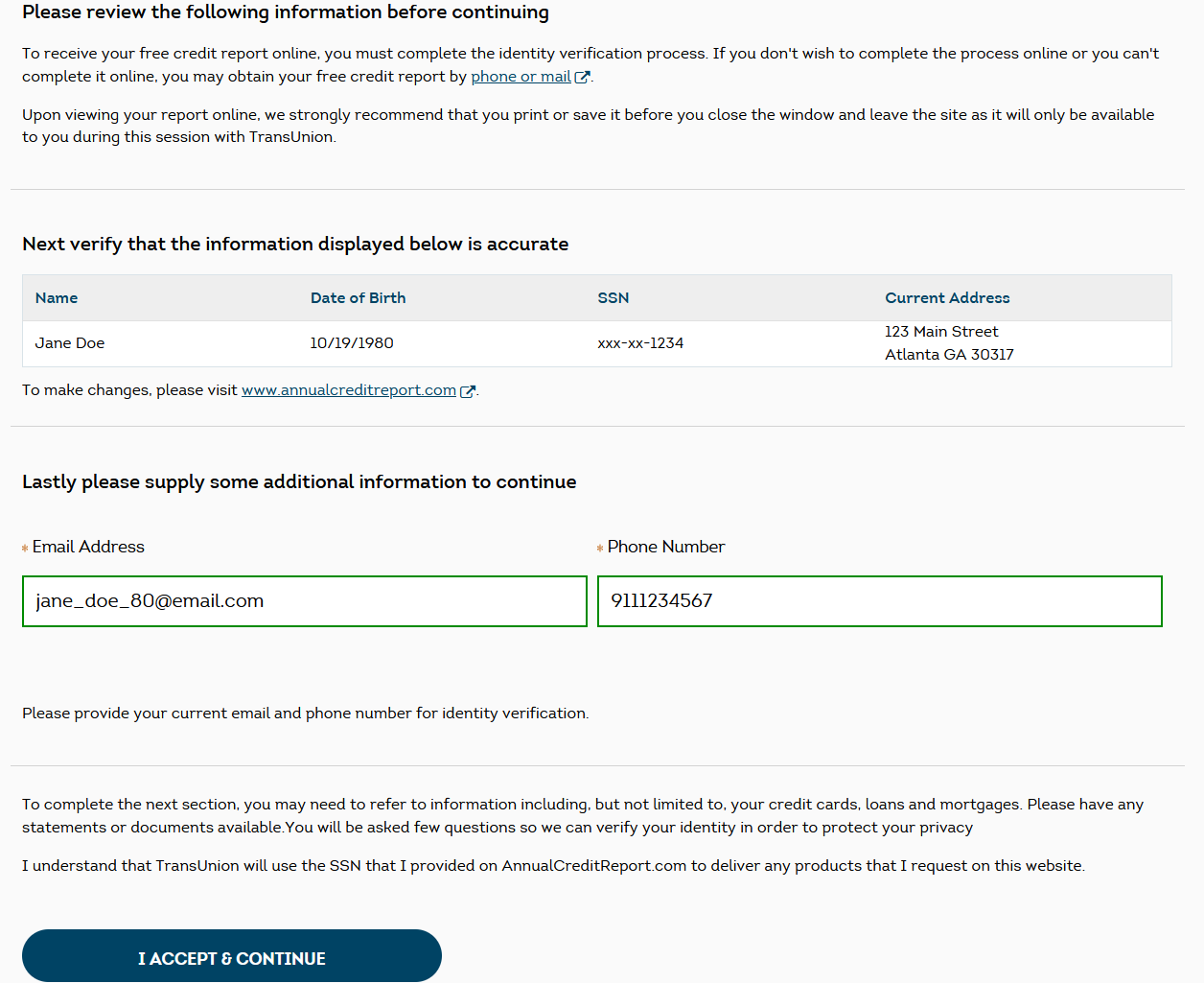
TransUnion will display the information you provided in the earlier steps. Before they can issue your credit report, you must provide an email address and phone number. You should have your phone nearby, as you'll need to enter a verification code sent by TransUnion before you can access your credit report.
Once you're ready, click the "I Accept & Continue" button at the bottom of the screen.
6. Select Verification Code Method
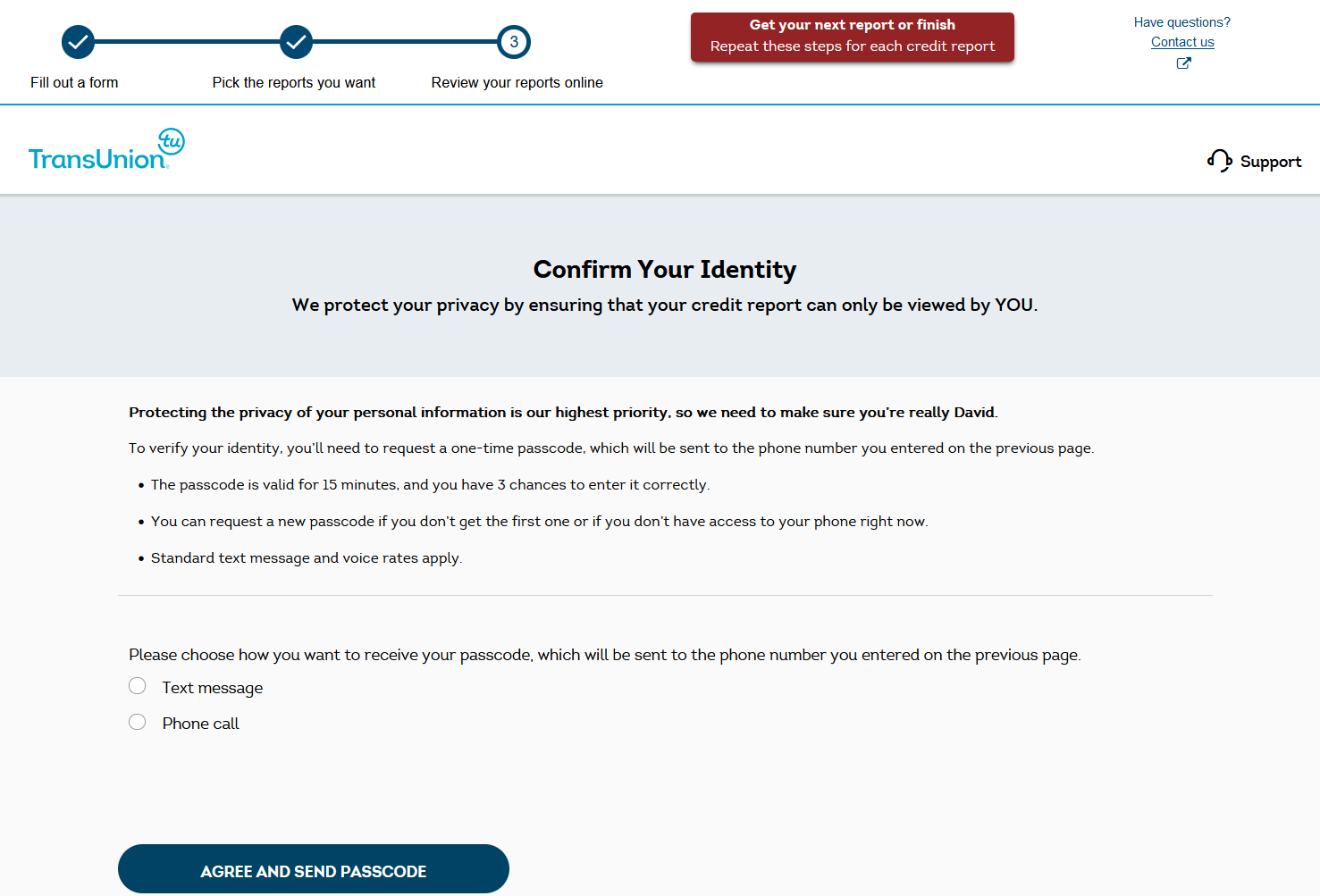
To confirm your identity, TransUnion will send a code to the phone number you provided on the previous page. You can choose between receiving the code by text message or phone call.
Once you've selected your preferred option, click the "AGREE & SEND PASSCODE" button at the bottom of the screen.
7. Enter Verification Code
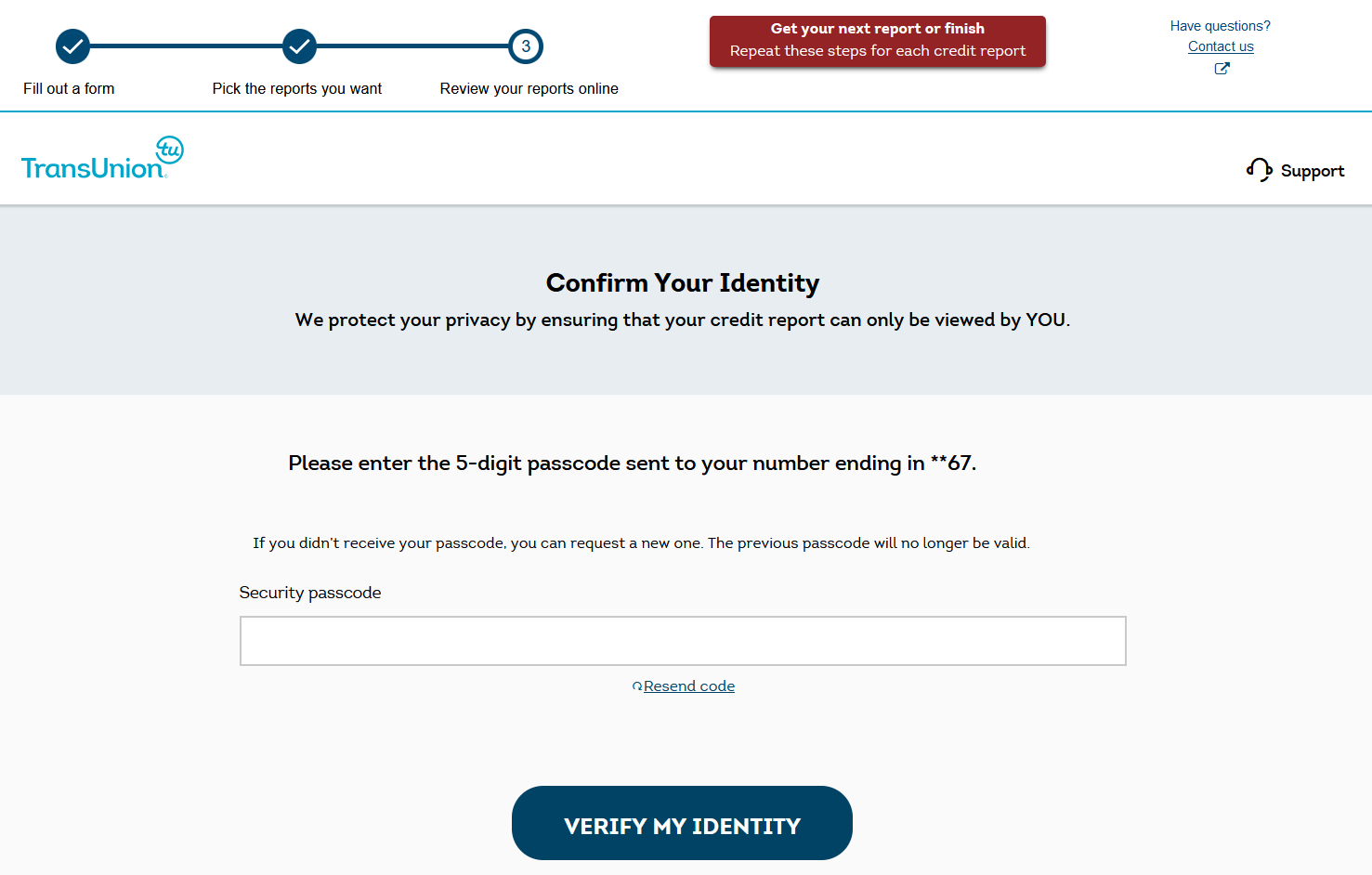
Shortly after completing the previous step, you should receive a five-digit code by phone call or text message. If you don't receive it, you can request a new code by clicking "Resend Code".
Once you have the code, enter it in the field provided and click the "VERIFY MY IDENTITY" button.
8. Successful Identity Verification
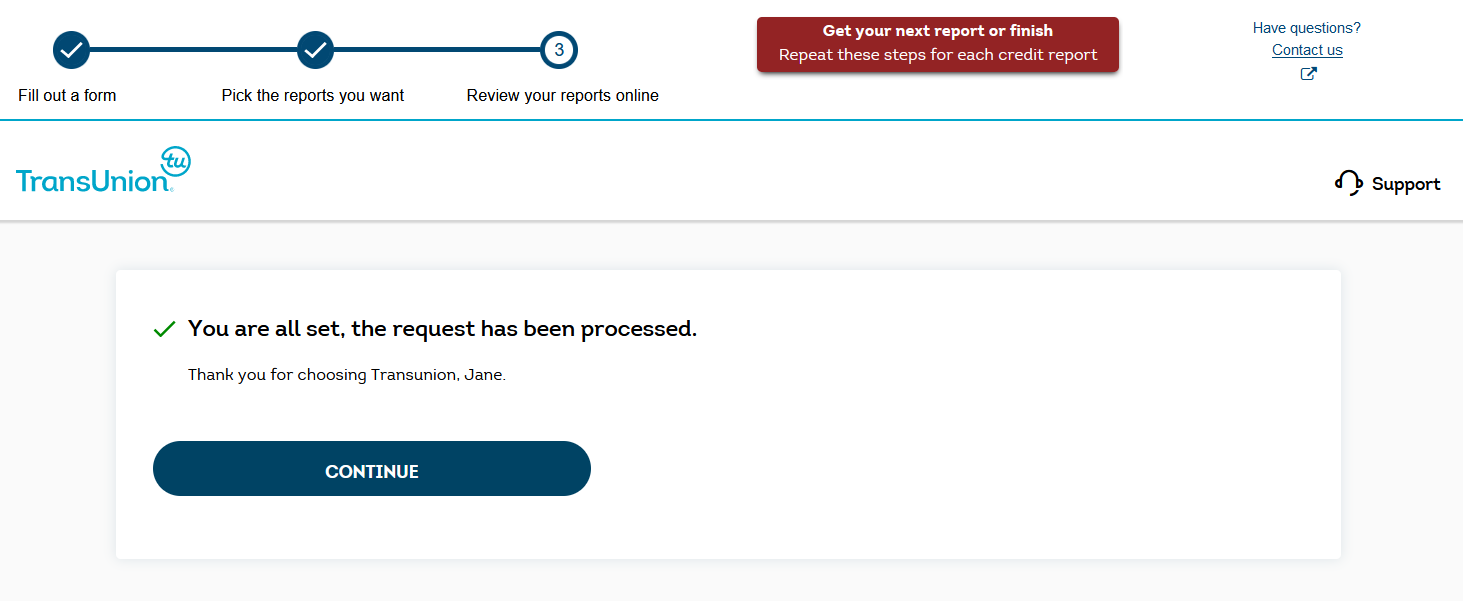
If the previous step was completed successfully, you should see a message indicating that your credit report has been prepared.
To view your report, click the "CONTINUE" button.
9. View Credit Report
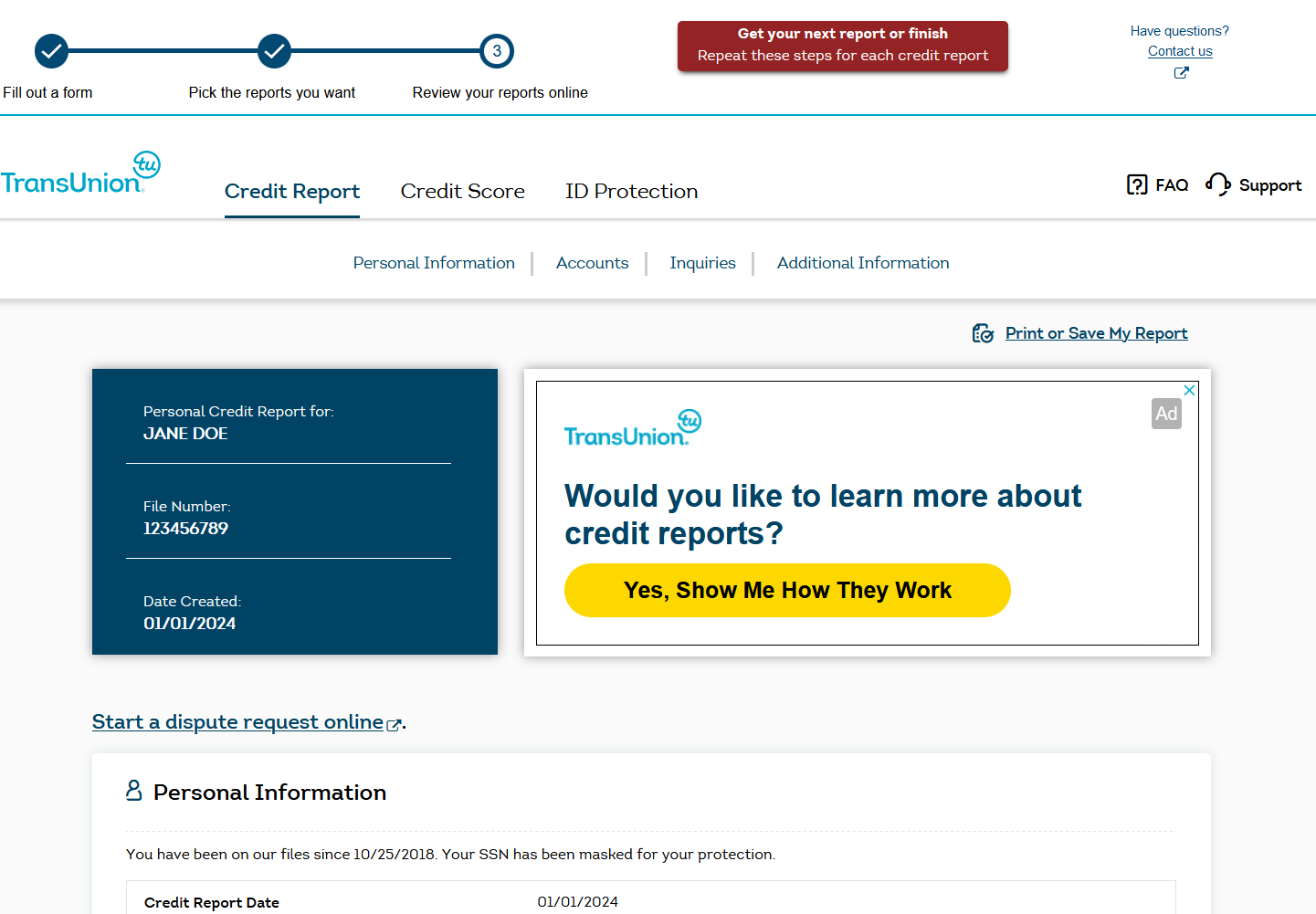
If you've made it this far, you should now be looking at your TransUnion credit report.
As you scroll through the report, you should see personal information (name, address, etc.), accounts (credit cards, auto loans, mortgages, etc.), inquiries (both hard and soft) and any additional items that may appear on your report, such as collections or bankruptcies.
10. Download Your Credit Report
Near the beginning of the credit report, you should notice a link titled "Print or Save my Report".
What happens when you click this link will depend on your browser, operating system and PDF settings. Either way, you should be given an option to save the report as a PDF on your computer or phone.
11. Get Next Report or Finish
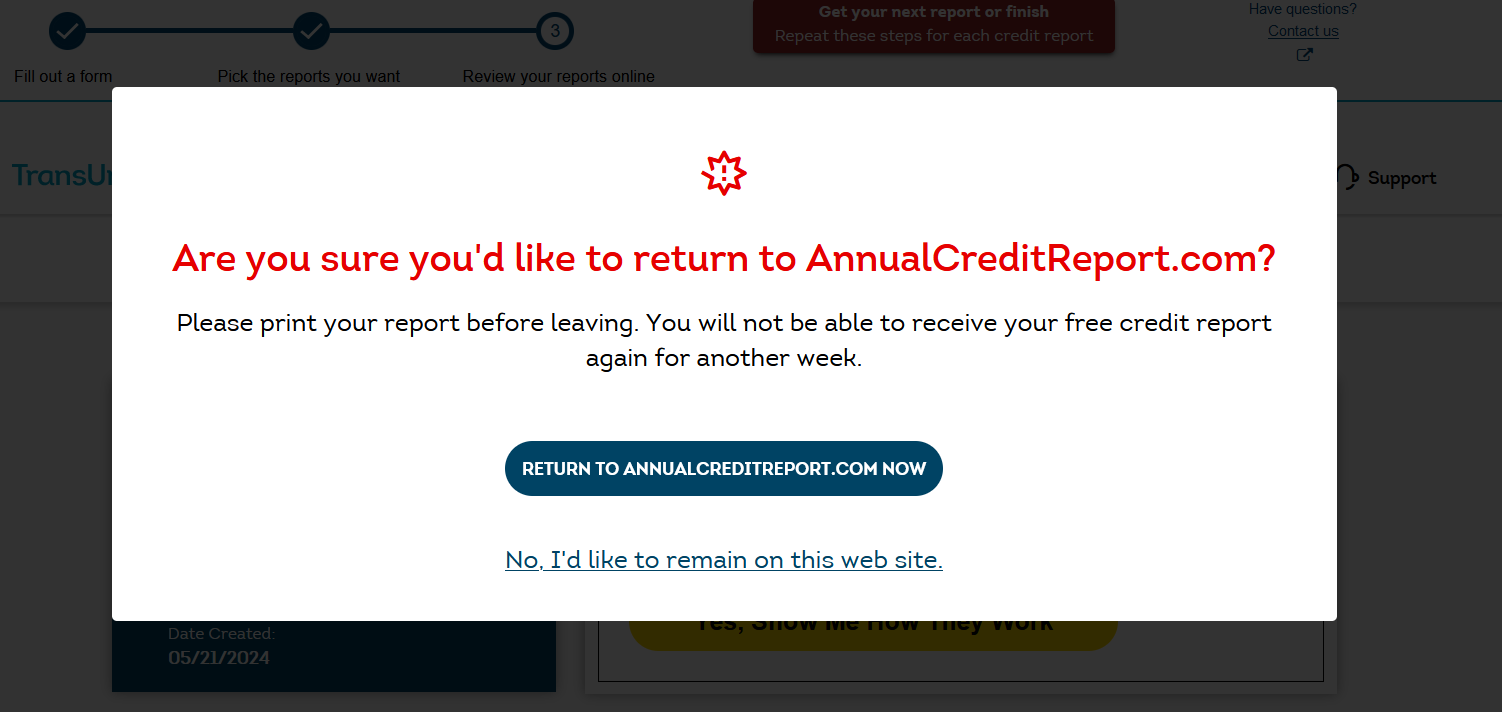
Once you're finished reviewing your credit report, click "Get your next report or finish". You must click the text itself, as the rest of the button is not responsive.
A popup should appear asking, "Are you sure you'd like to return to AnnualCreditReport.com?" Click "RETURN TO ANNUALCREDITREPORT.COM NOW" to continue.
If you'd like to return to your TransUnion credit report, click "No I'd like to remain on this website".
The terminology can be a little confusing, as it may feel like you never left AnnualCreditReport.com. As mentioned earlier, you can think of the credit report as a TransUnion website embedded within AnnualCreditReport.com.
If you opted to view reports from other CRAs, you'll repeat a similar process for each provider. You won't need to re-enter the personal information from step 3, as that information will be passed to the next CRA you selected. See the guides below for instructions specific to those providers.
If you only selected TransUnion, you'll be returned to the AnnualCreditReport.com homepage.