
How to View Your Full Experian Credit Report
Step-by-step guide to accessing your full Experian credit report through AnnualCreditReport.com.
A credit report provides a detailed history of your financial relationships with banks, lenders and other entities. They are compiled and maintained by companies known as credit reporting agencies (CRAs) — the three largest being TransUnion, Equifax and Experian. While you have likely viewed your credit report through a personal finance website or banking app, these versions may not contain the same level of detail as a credit report that you have personally requested. That's why it's important to understand how to access your own copy and ensure that you are truly on top of your finances.
AnnualCreditReport.com is the only website authorized by the federal government to issue free credit reports from the three major CRAs.
This guide will show you how to download your full Experian credit report. For the other CRAs, please follow the links below. The process is quite similar across all three agencies. In fact, Steps 1–4 are exactly the same regardless of which CRA you choose. If you're already familiar with these steps from another guide, you can proceed directly to Step 5.
1. Visit AnnualCreditReport.com
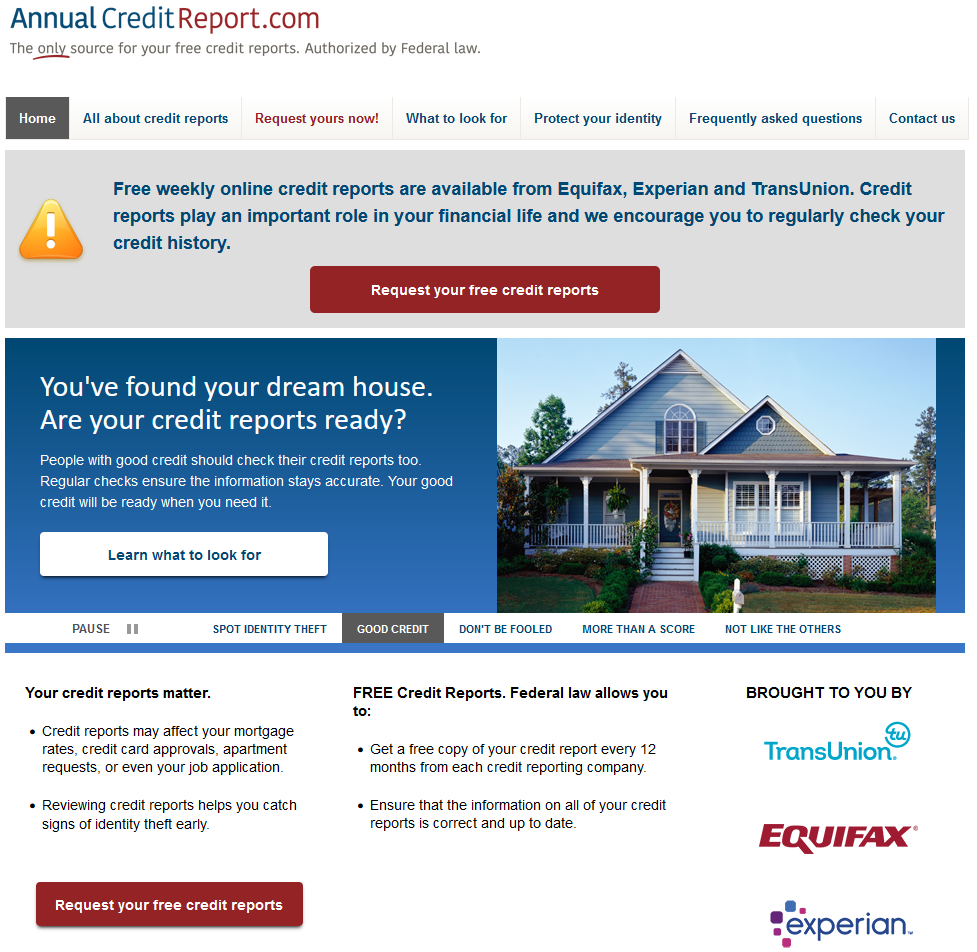
In your browser, navigate to AnnualCreditReport.com. The website itself looks quite dated, which you might say is typical of a government (or, in this case, government-mandated) website. On the positive side, you're not distracted by additional products or services. The only thing you can really do on the site is request your credit report, so it's hard to go down the wrong path.
Click on one of the many icons or links asking you to "Request your free credit report".
2. Start Request Process
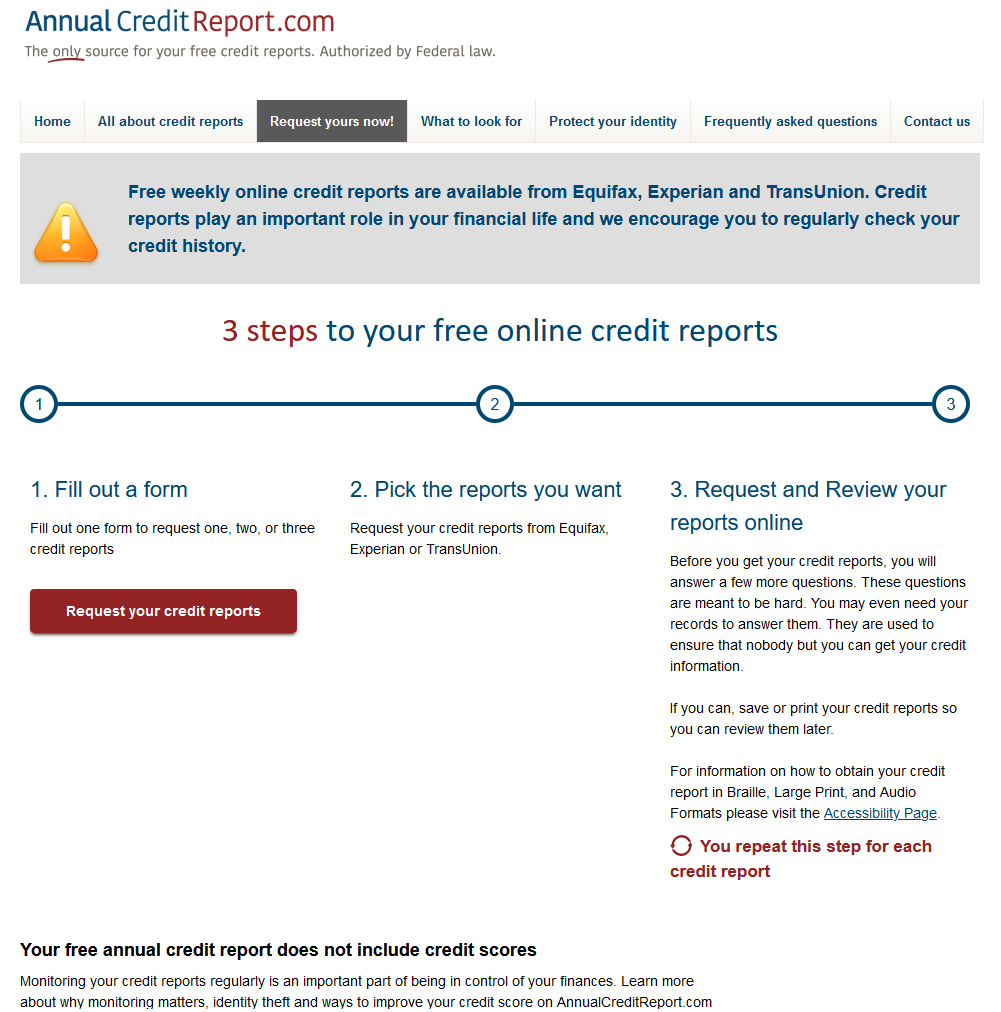
If you followed the previous step, you'll have been taken to this page. It lays out the procedure for obtaining your credit report(s) from the website. Once you've read it, click on the red "Request your credit reports" button.
3. Fill Out Personal Information Form
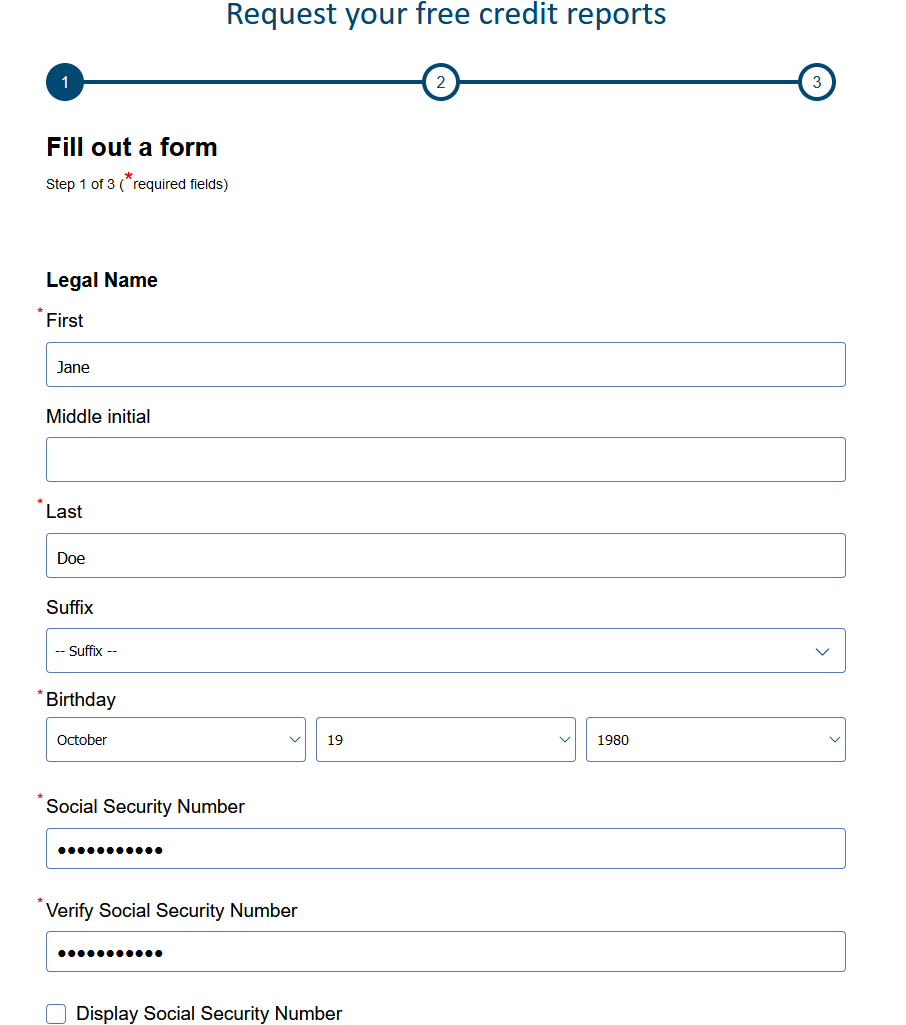
To retrieve your credit report, you'll need to provide some personal information. This includes your name, date of birth, Social Security number and current address. If you have lived at your current address for less than two years, you should also enter your previous address.
You may not have updated your address with your banks, or the banks may not yet have submitted the updated information to the CRAs, so this step increases the likelihood of being successfully matched. Once you have provided the necessary information, click Next at the bottom of the page.
4. Select Credit Reporting Agencies (CRAs)
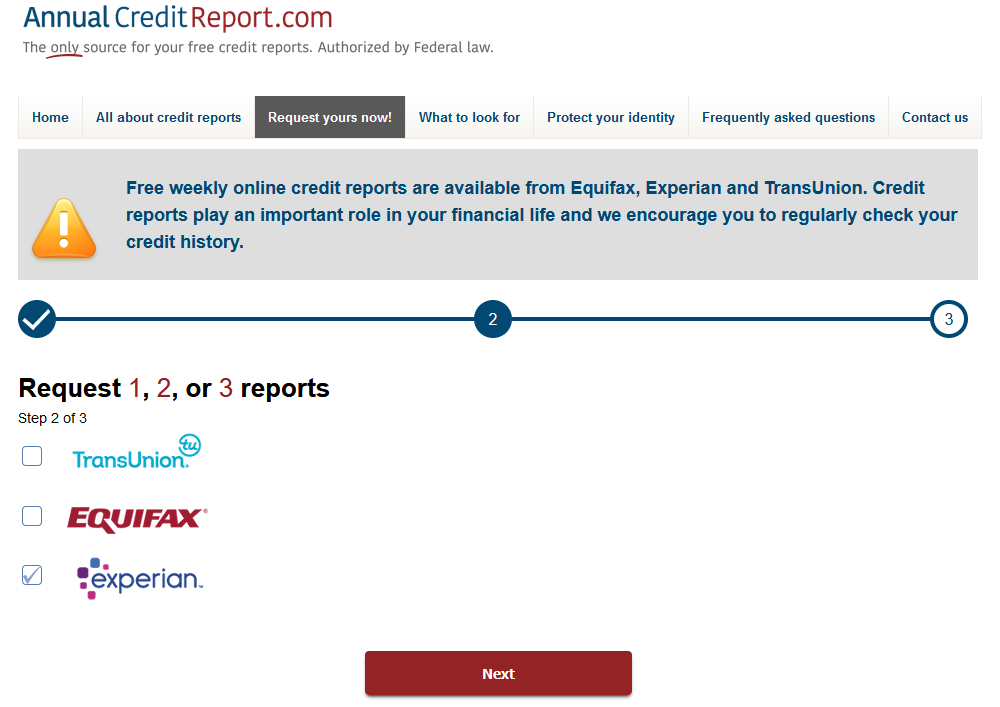
As previously mentioned, AnnualCreditReport.com is the only website authorized by the federal government to issue free credit reports from the three major CRAs: TransUnion, Equifax and Experian.
For this step, you must select the CRAs from which you wish to retrieve your credit report. No CRA is inherently better than the others. Many lenders only report to one or two CRAs, so the credit report you receive from each agency may differ. To get a complete picture of your financial history, we generally recommend selecting all three CRAs. However, as this guide focuses on Experian, we'll only select Experian.
Once you have made your selection, click Next to continue. At this stage, you will initiate the process with Experian, which requires an additional verification step.
5. Provide Additional Information for Identity Verification
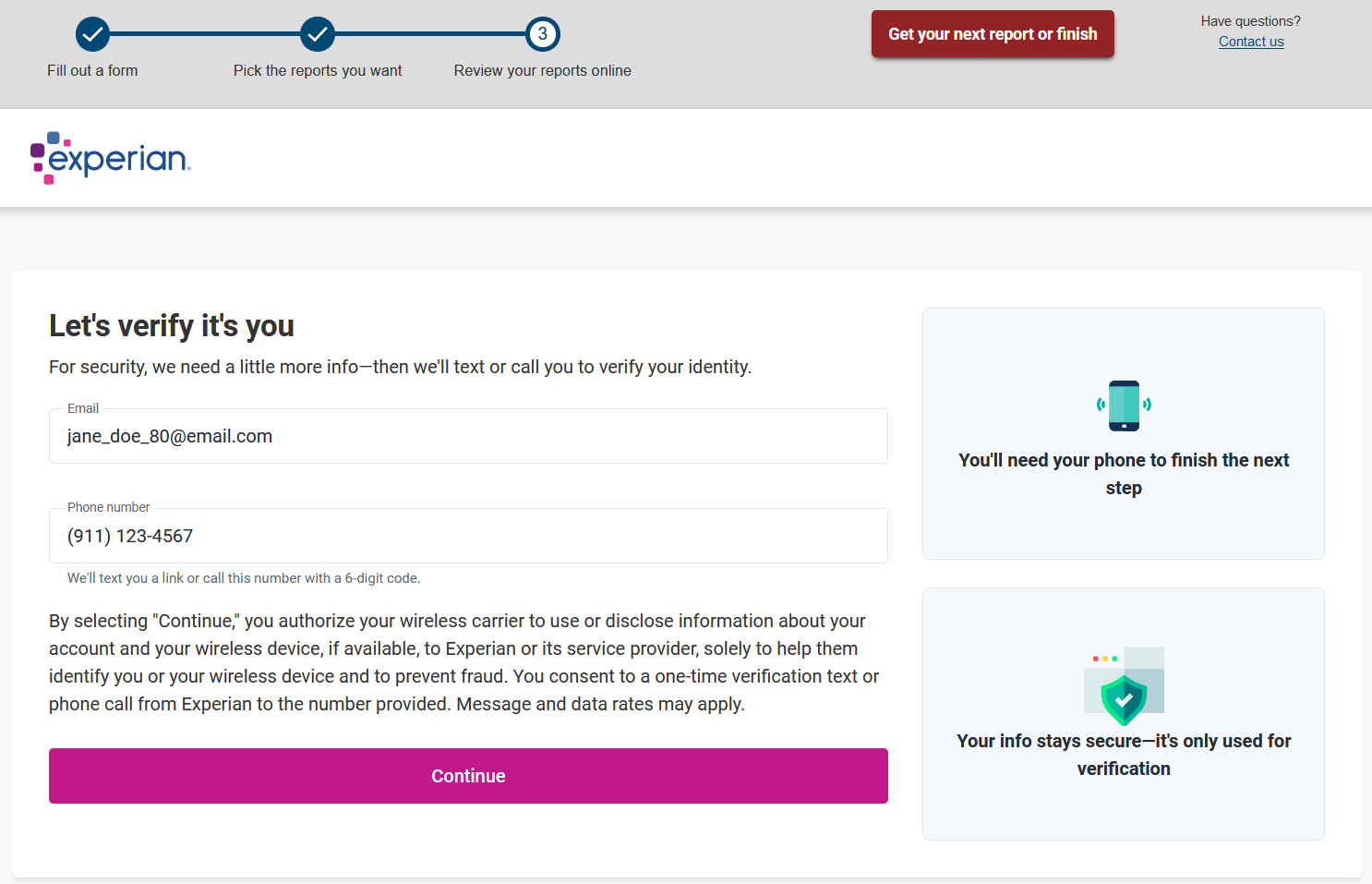
You should see the Experian logo towards the top of the page. From this point onwards, you are communicating with Experian via AnnualCreditReport.com. You can think of it as the Experian website embedded within AnnualCreditReport.com.
Before Experian can deliver your credit report, you must provide an email address and phone number. You should have your phone nearby, as you'll need to complete an additional verification step before you can access the credit report.
Once you're ready, click the "Continue" button at the bottom of the screen.
6. Check Your Phone for a Message from Experian
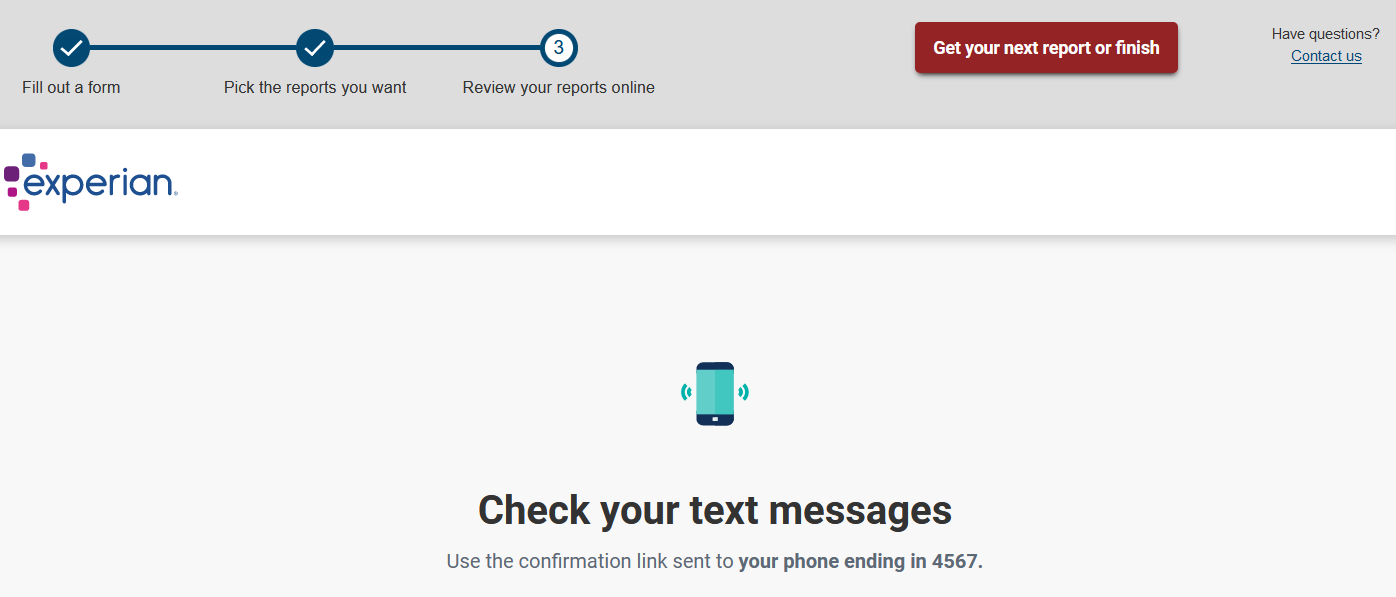
To confirm your identity, Experian will send a text message to the phone number you provided on the previous page. The message will contain a unique temporary link. Click on the link and you should see the image below on your phone.
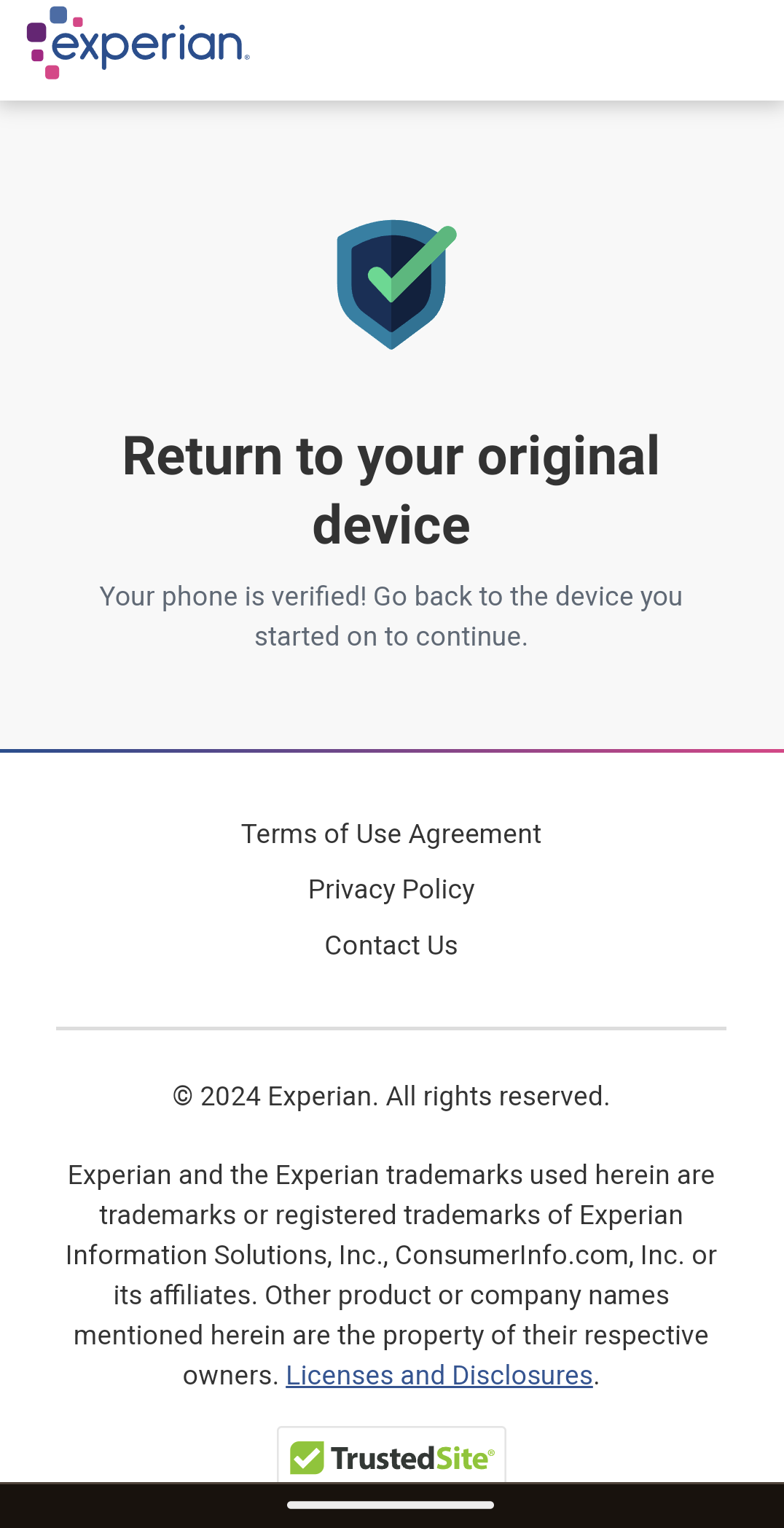
As the message explains, you can then return to the original device on which you started the Experian credit report request.
7. Confirm Identity with Questionnaire
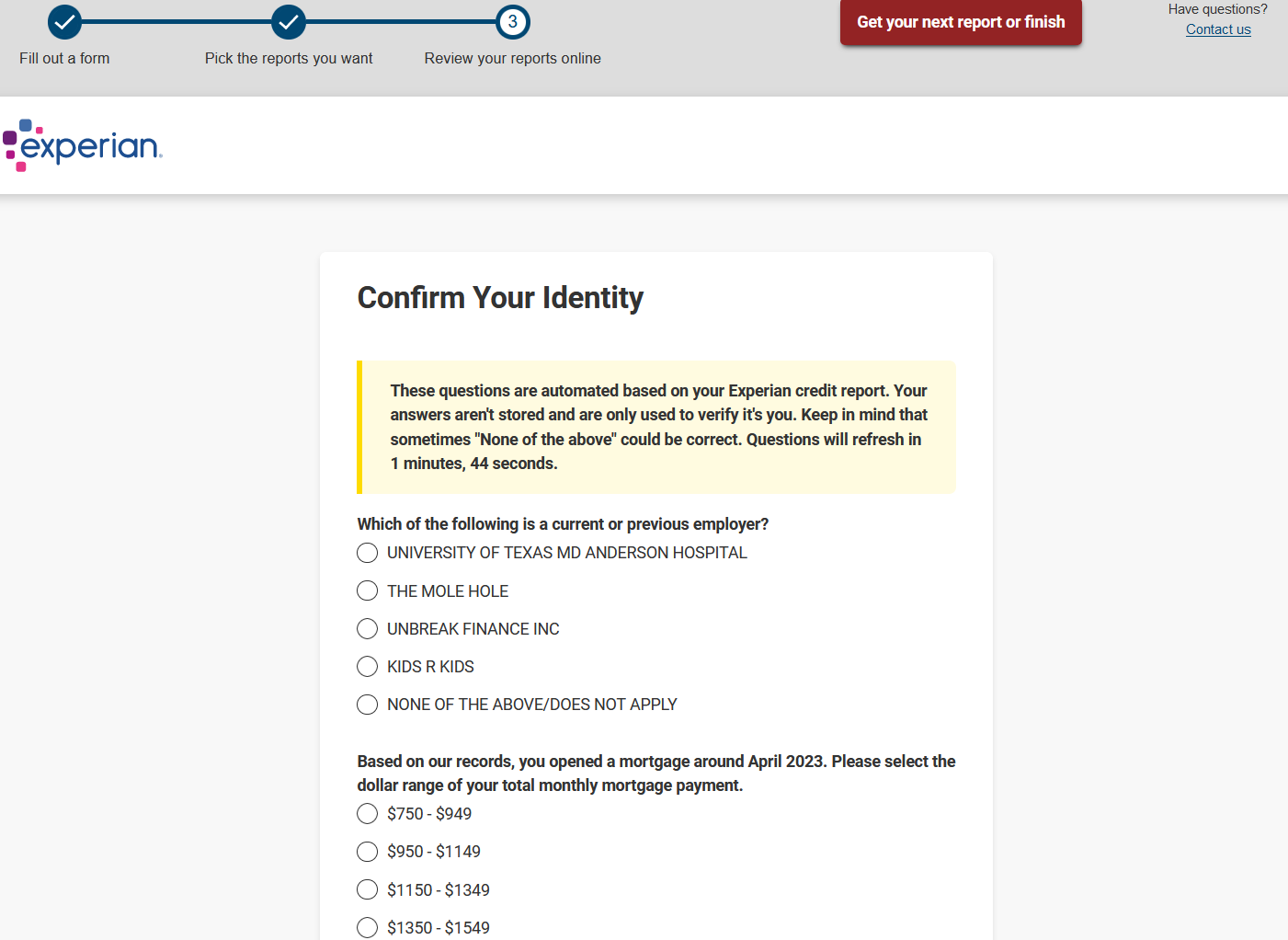
As an additional layer of verification, Experian requires you to answer several multiple-choice questions based on the contents of your credit report. It's very common for the correct answer to be "NONE OF THE ABOVE" or "DOES NOT APPLY", especially if you have a limited credit history.
You have five minutes to complete this step.
8. View Credit Report
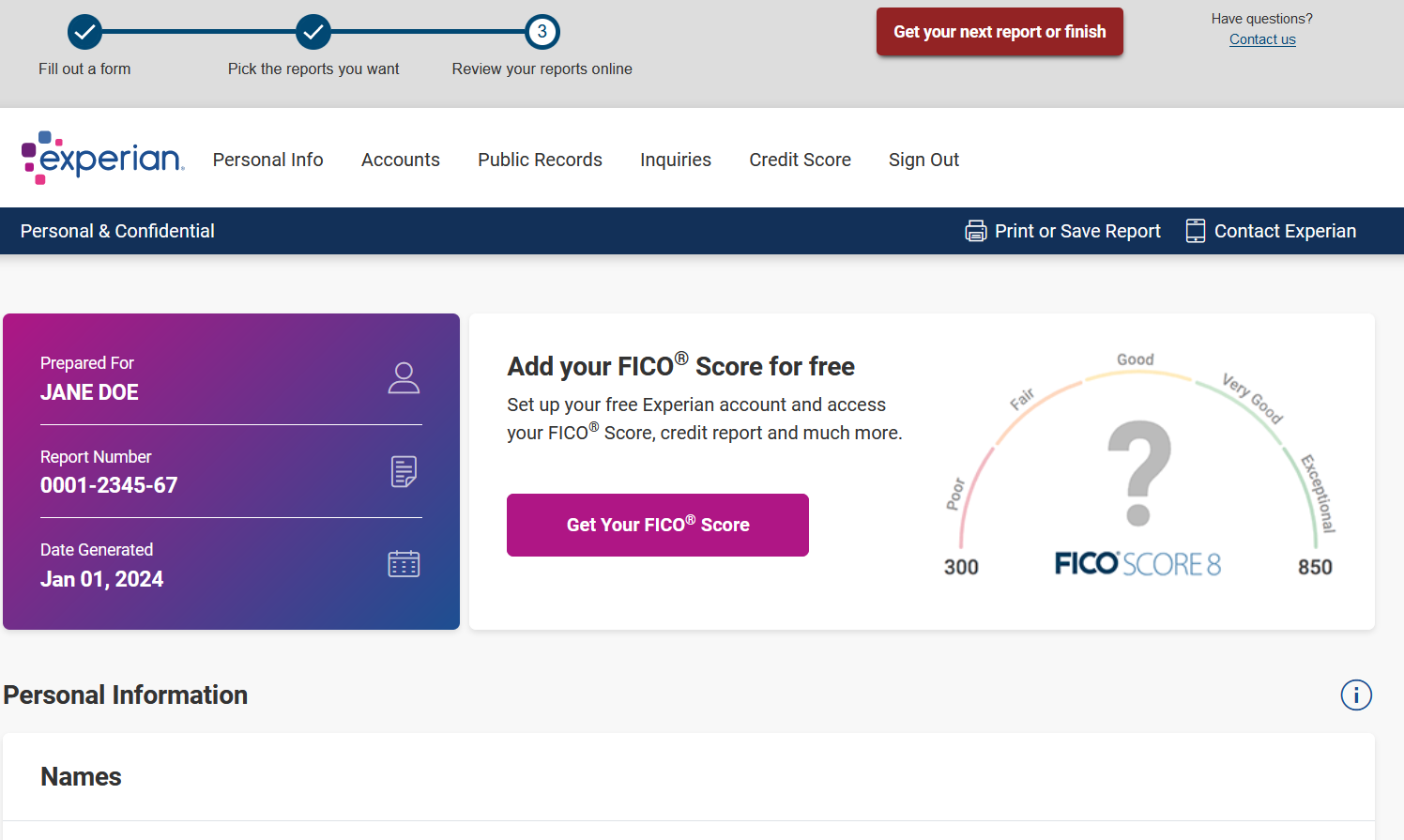
If you've made it this far, you should now be looking at your Experian credit report. Scrolling down the page, you should see personal information (name, address, etc.), your accounts (credit cards, auto loans, mortgages, etc.), inquiries (both hard and soft) and any other information present in your report, such as collections or bankruptcies.
9. Download Your Credit Report
Close to the beginning of the credit report, you should notice a link titled "Print or Save Report". What happens when you click the link will depend on your browser, along with the software and settings you have associated with PDF files.
Either way, you should have the option to save the credit report as a PDF somewhere on your computer or phone.
10. Get Next Report or Finish
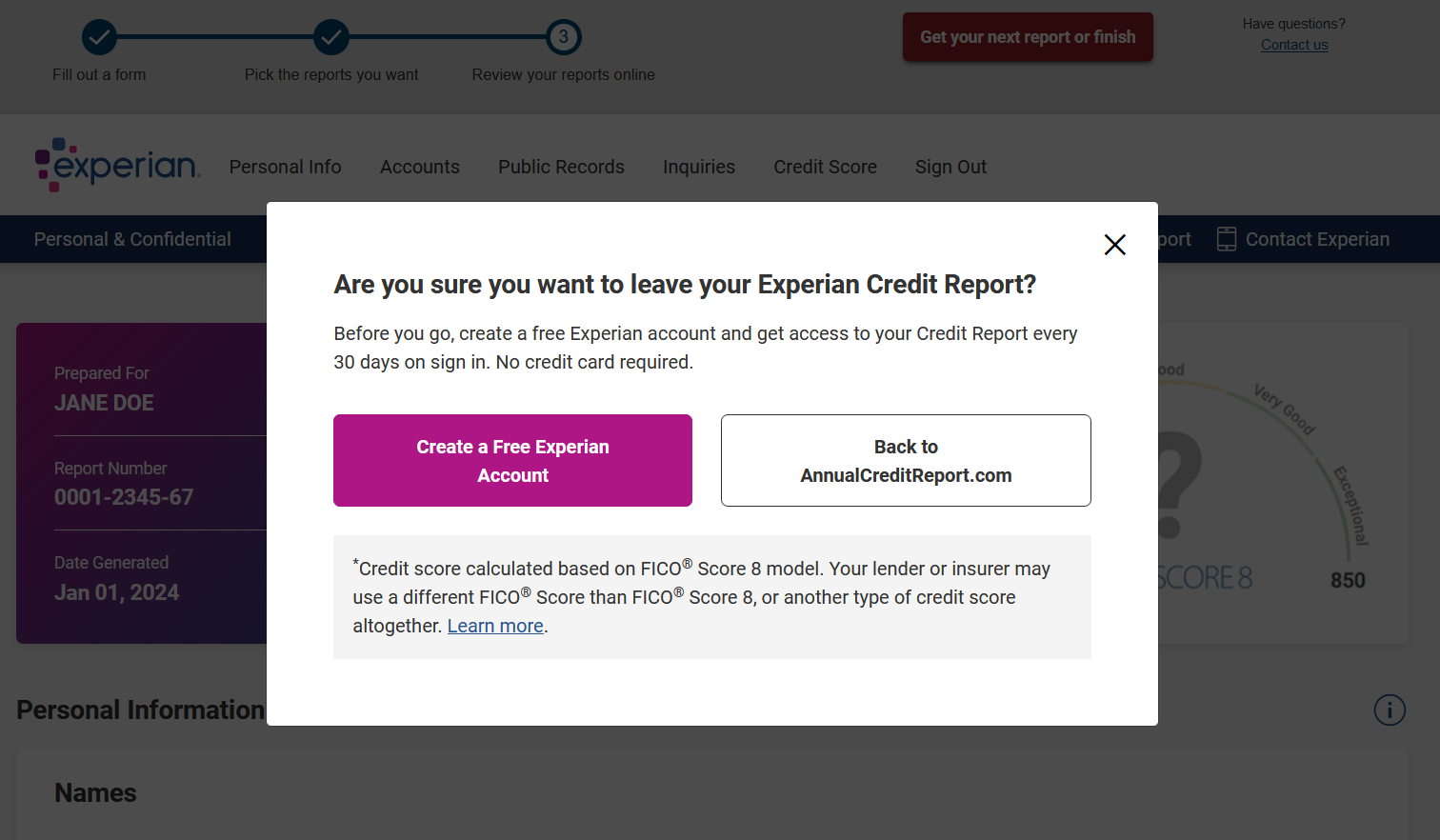
Once you're done exploring your credit report, click on "Get your next report or finish". A popup should appear asking, "Are you sure you want to leave your Experian Credit Report?"
If you wish to return to your Experian credit report, click the "X" in the corner of the popup.
You also have the option to create a free Experian account, which offers additional services (such as a free FICO score), similar to many other personal finance websites.
If you're finished, click "Back to AnnualCreditReport.com" and you will be taken back to the AnnualCreditReport.com homepage.