How to View Your Full Credit Reports
Step-by-step guide to accessing your full credit reports from each credit reporting agency through AnnualCreditReport.com.
A credit report provides a detailed history of your financial relationships with banks, lenders and other entities. They are compiled and maintained by companies known as credit reporting agencies (CRAs)- the biggest three being TransUnion, Equifax and Experian. While you have likely viewed your credit report on a personal finance website or banking app, these versions lack information that is only present in a credit report that you have personally requested. So it's important to understand how you can access your personal copy and ensure that you are truly on top of your finances.
There are several different options available to retrieve your full credit report; the easiest by far is to visit AnnualCreditReport.com. This is the only website authorized by the federal government to issue free credit reports from the three CRAs. If you'd prefer, you can also request your credit report by phone or mail:
By calling 1-877-322-8228 (TTY: 1-800-821-7232)
By filling out the Annual Credit Report request form and mailing it to:
Annual Credit Report Request Service PO Box 105281 Atlanta, GA 30348-5281
The rest of this page will provide a step-by-step guide on how to download your credit reports from AnnualCreditReport.com.
1. Visit AnnualCreditReport.com

In your browser, navigate to AnnualCreditReport.com. The website itself looks quite dated, which you might say is typical of a government (or, in this case, government mandated) website. On the positive side, you're not distracted by additional products or services. The only thing you can really do on the site is to request your credit report, so it's hard to go down the wrong path.
Click on one of the many icons or links asking you to 'Request your free credit report'.
2. Start Request Process
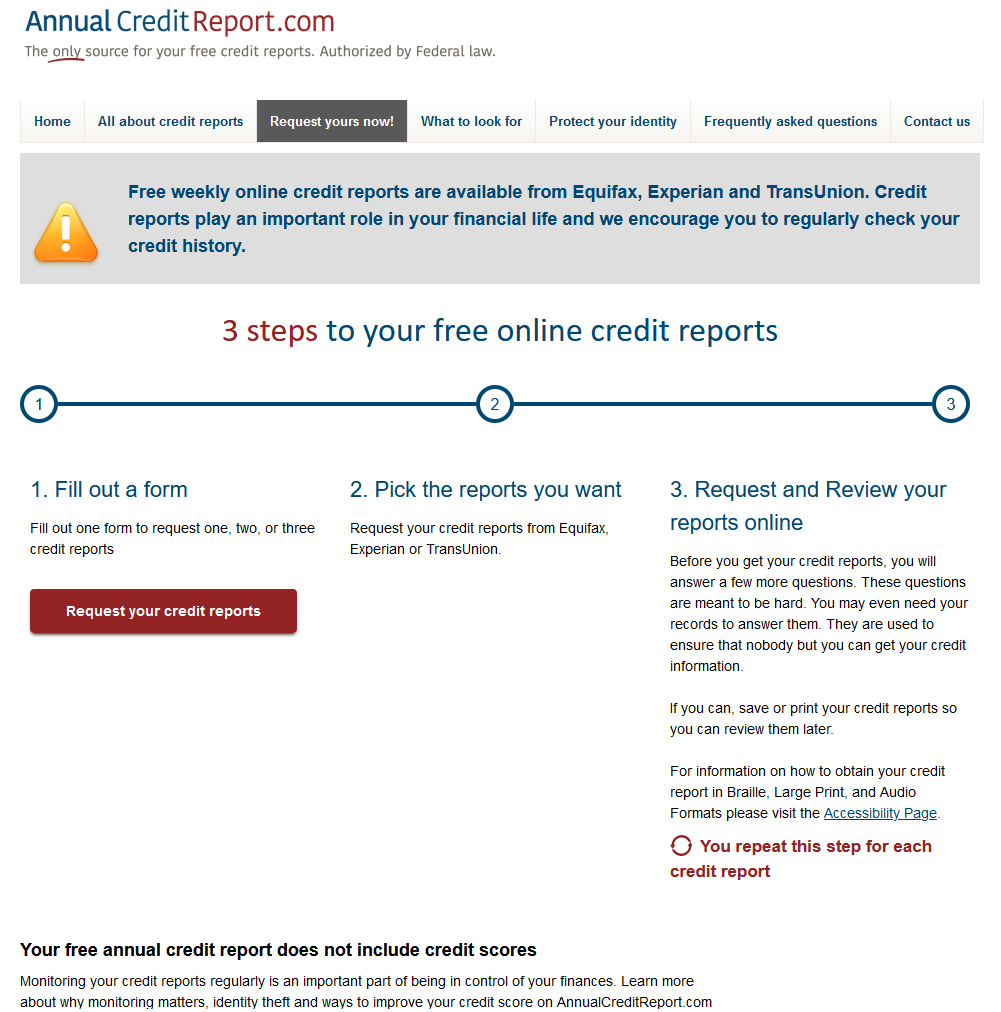
If you followed the previous step, you'll have been taken to this page. It lays out the procedure for attaining your credit report(s) from the website. Once you've read it, click on the red 'Request your credit reports' button.
3. Fill out Personal Information Form
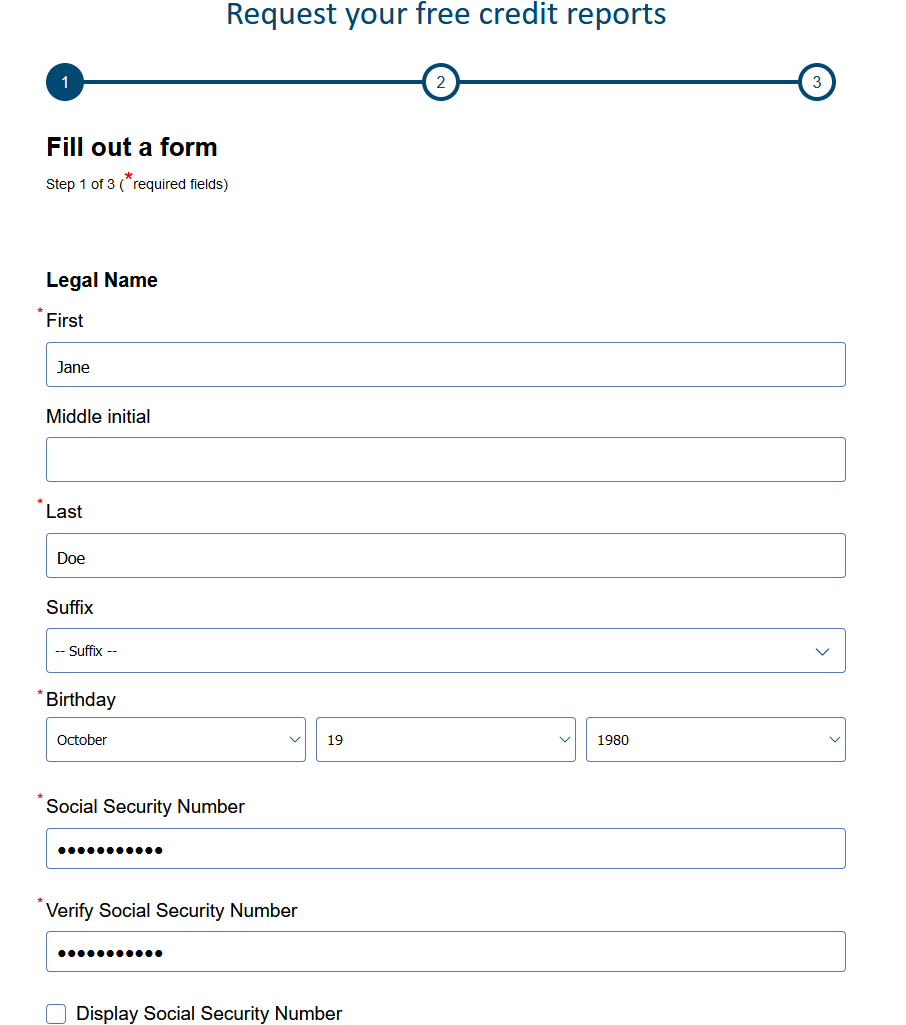
To retrieve your credit report, you'll need to provide some personal information. This includes your name, date of birth, full security number and current address. If you have lived at your current address for less than 2 years, then you should also enter your previous address. You may not have updated your address with your banks or the banks may have not submitted the updated information to the CRAs, so this step increases the likelihood of being successfully matched. Once you have provided the necessary information, click Next at the bottom of the page.
4. Select Credit Reporting Agencies (CRAs)
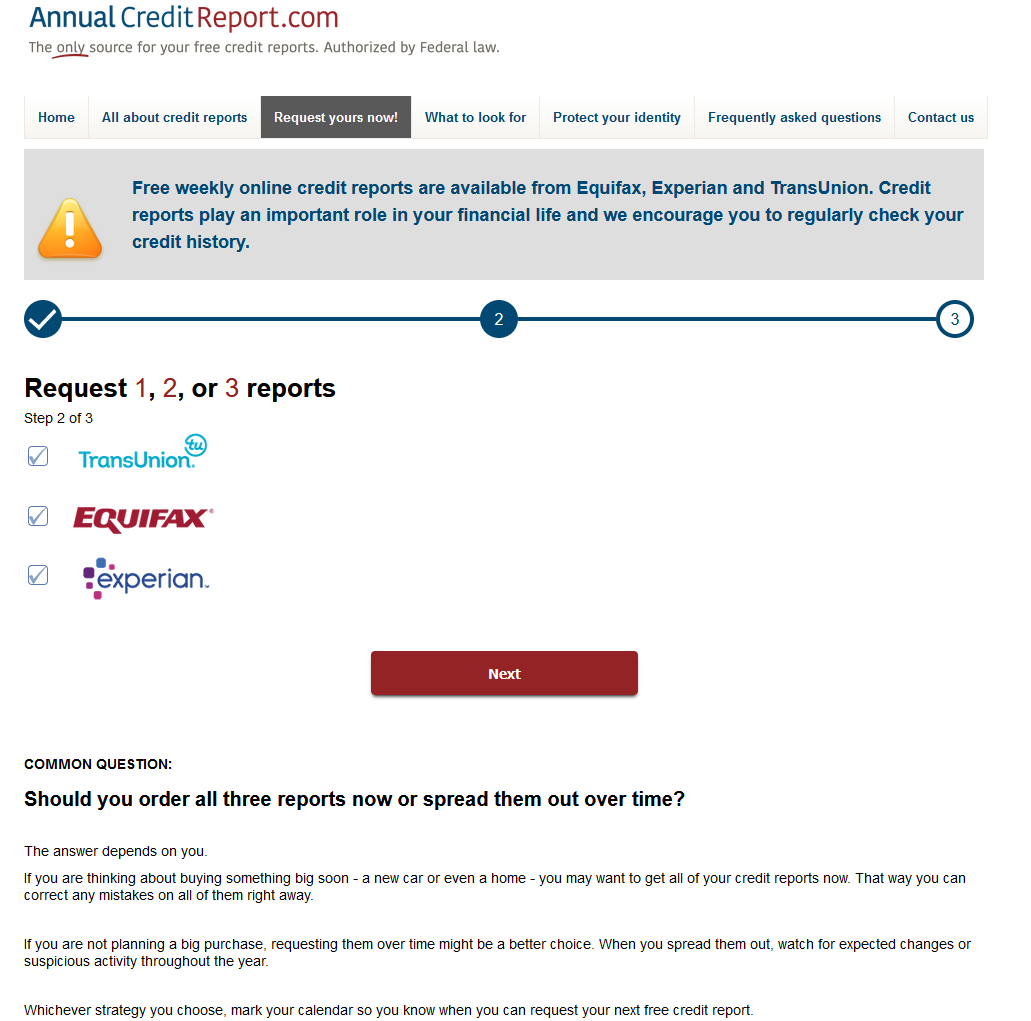
As previously mentioned, AnnualCreditReport.com is the only website authorized by the federal government to issue free credit reports from the three CRAs, namely TransUnion, Equifax and Experian. For this step, you must select the CRAs from which you wish to retrieve your credit report. No CRA is inherently better than the others. Many lenders only report to one or two CRAs, so the credit report you receive from each CRA will differ from each other. To get a complete picture of your financial history, we recommend you select all 3 CRAs in this step.
Once you have made your selection, click Next to continue. At this stage, you will initiate the process with the first CRA that you selected. If you selected all three, as suggested, then you will start with TransUnion. Essentially, each CRA will require an additional verification step (either a code sent to your phone or email).
5. Provide Additional Information for Identity Verification (TransUnion)
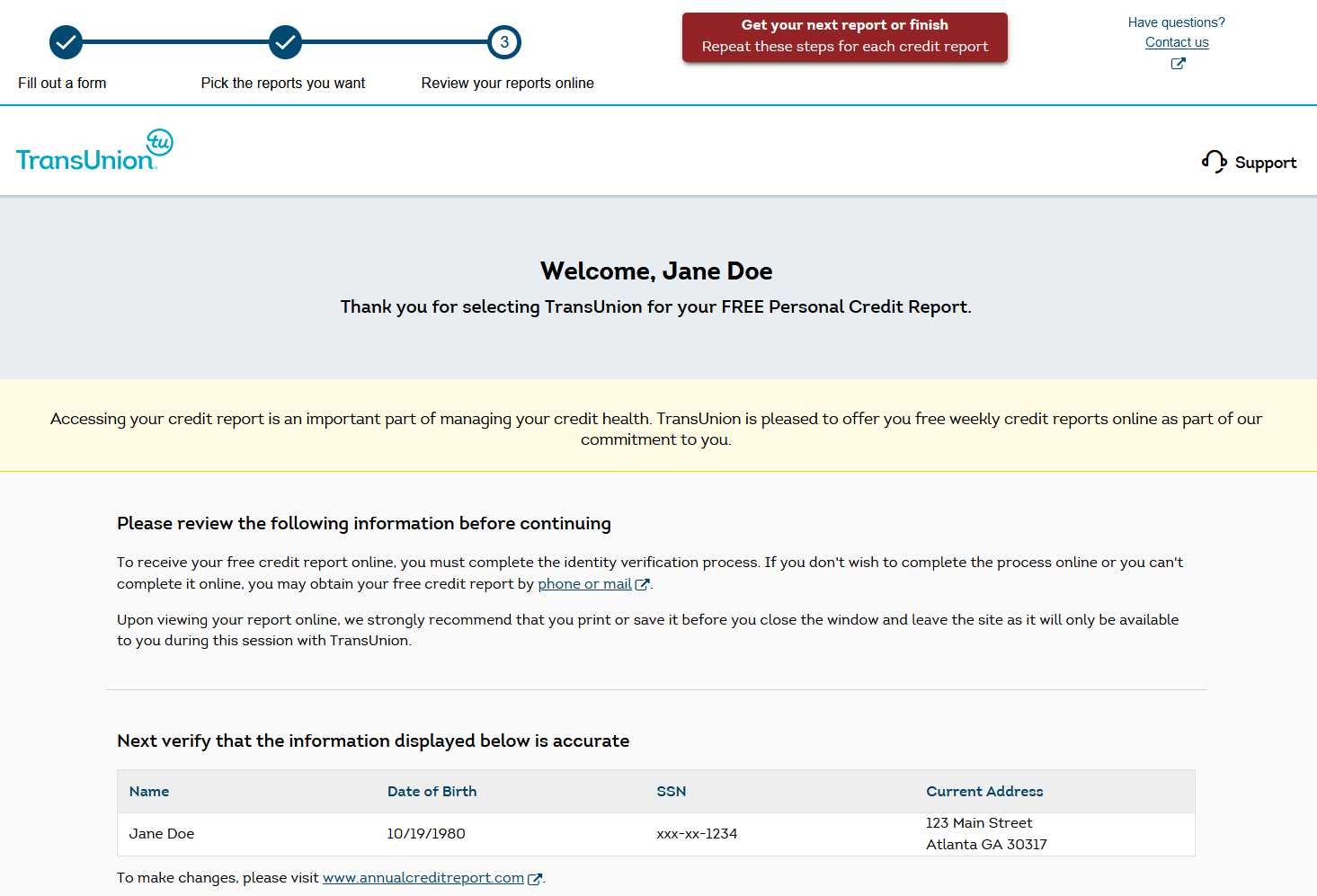
You should see the TransUnion logo towards the top of the page. From this point onwards, you are communicating with TransUnion via AnnualCreditReport.com. You can think of it as the TransUnion website embedded within AnnualCreditReport.com.
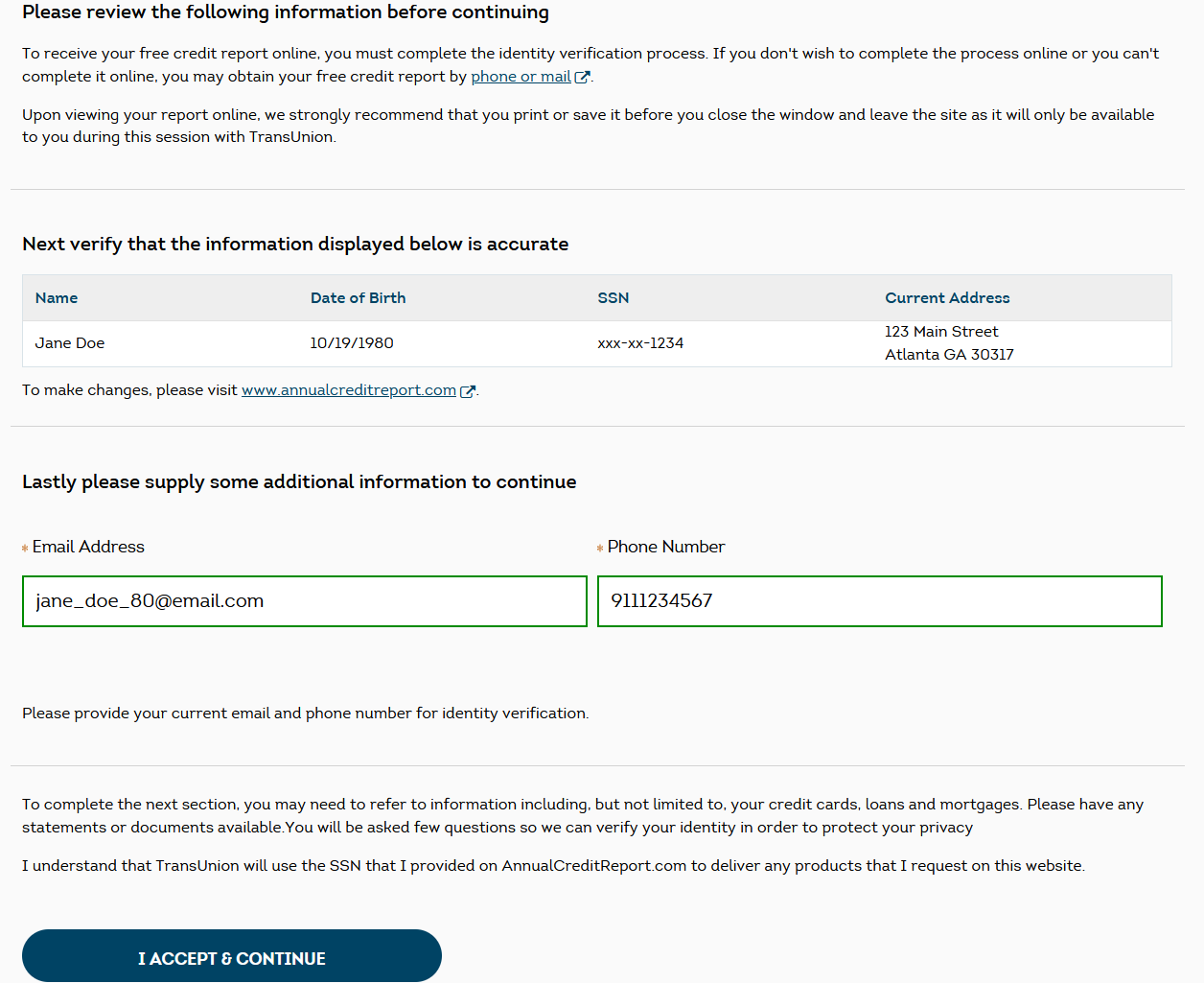
They will show you again the information you provided in earlier steps. Before they can issue your credit report, you must provide an email address and phone number. You should have the phone nearby, as you'll need to enter a code that TransUnion sends to you before you can access the credit report. Once you're ready, click the 'I Accept & Continue' button at the bottom of the screen.
6. Select verification code method
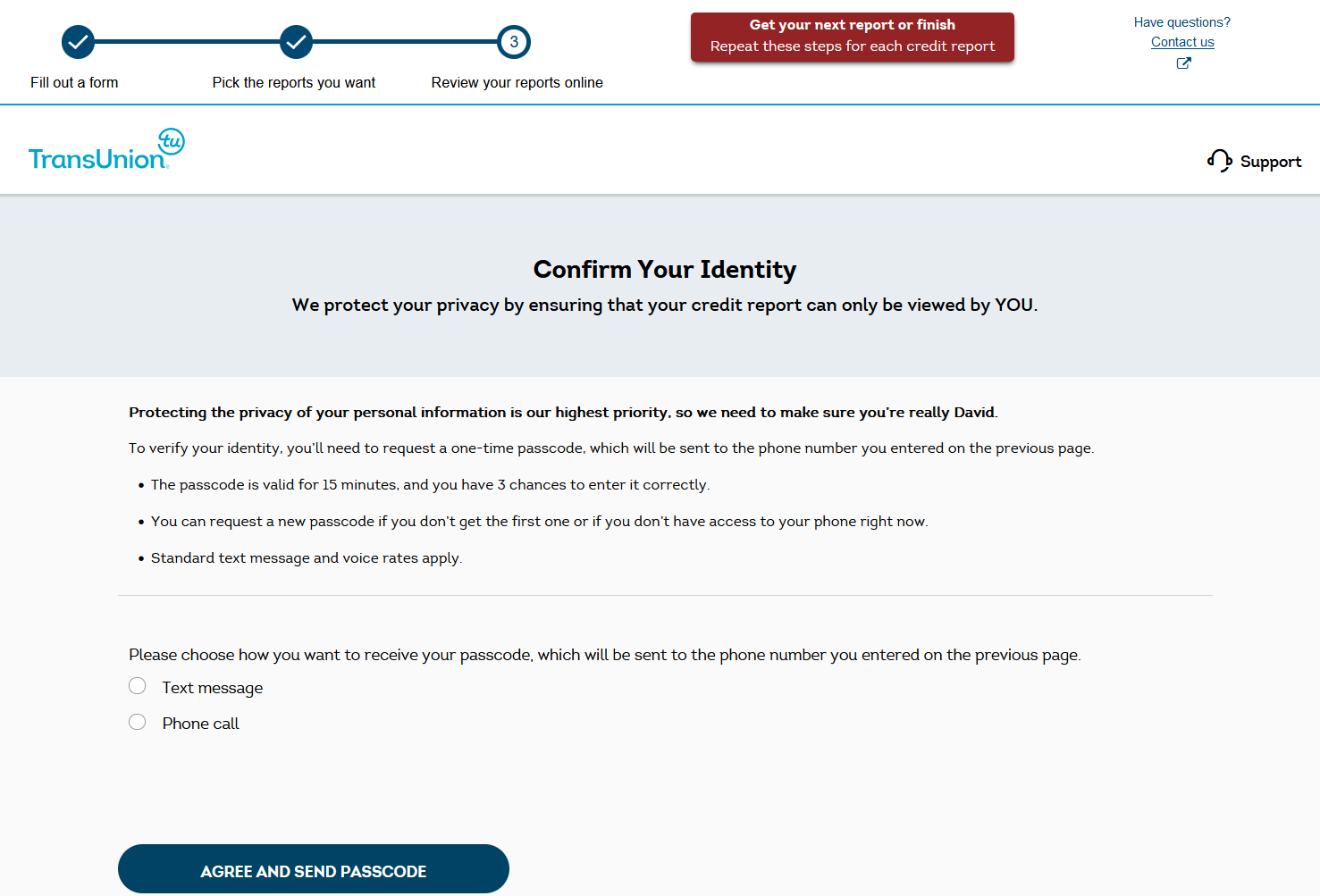
To confirm your identity, TransUnion will send a code to the phone you provided on the previous page. You can choose between a text message and a phone call. Whichever one you select, once you are ready, click the 'AGREE & SEND PASSCODE' button at the bottom of the screen.
7. Enter verification code
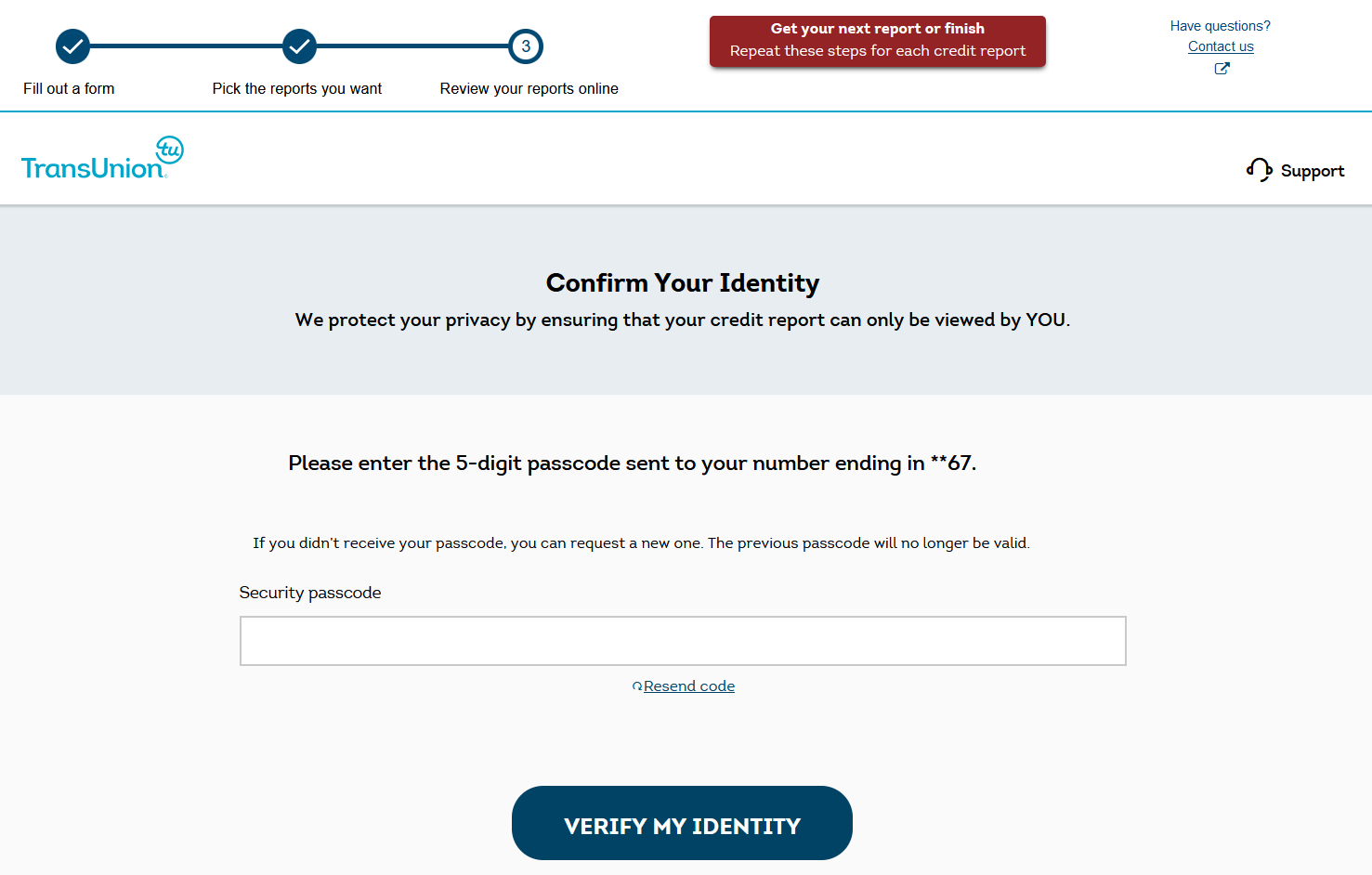
Within a short period of completing the final step, you should have received a 5-digit code, either via phone call or text message. If that didn't happen, then you can request to have the code resent by clicking 'Resend Code'. Once you have the code, you should enter it in the field box positioned in the middle of the screen and then click the 'VERIFY MY IDENTITY' button.
8. Successful identity verification
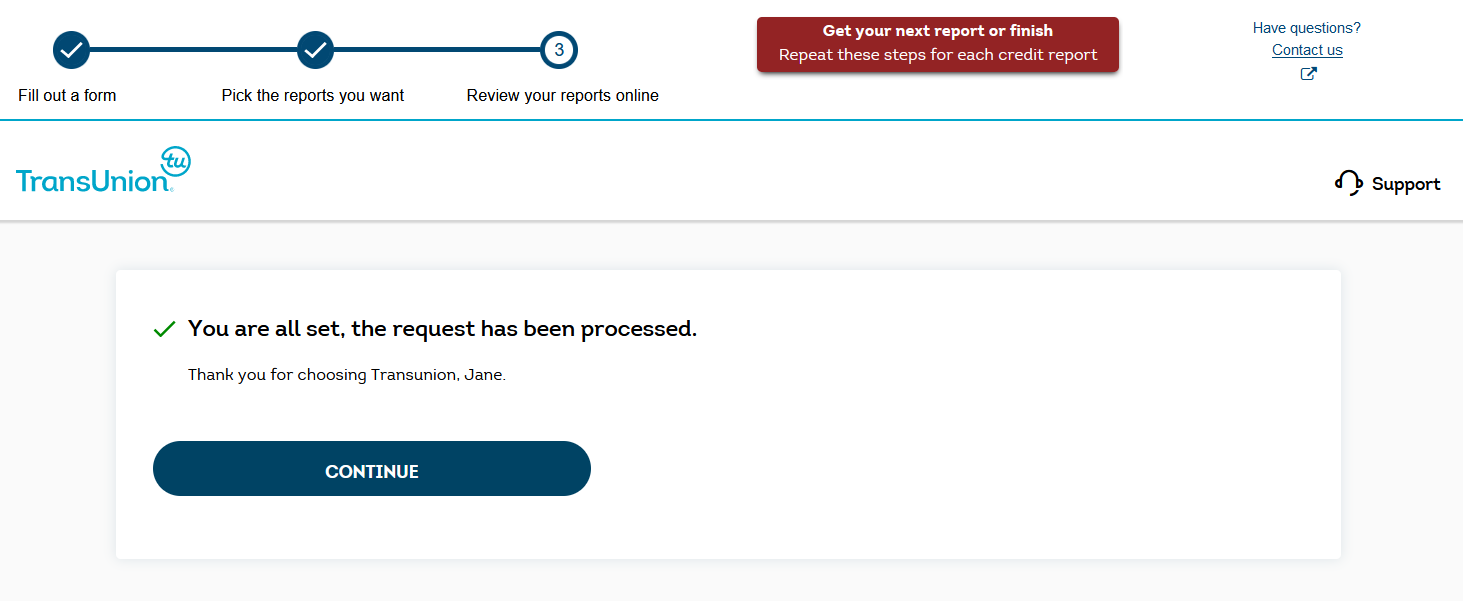
If that last step was performed successfully, then you should see message indicating that your credit report has been prepared. To view it, click the 'CONTINUE' button.
9. View TransUnion credit report
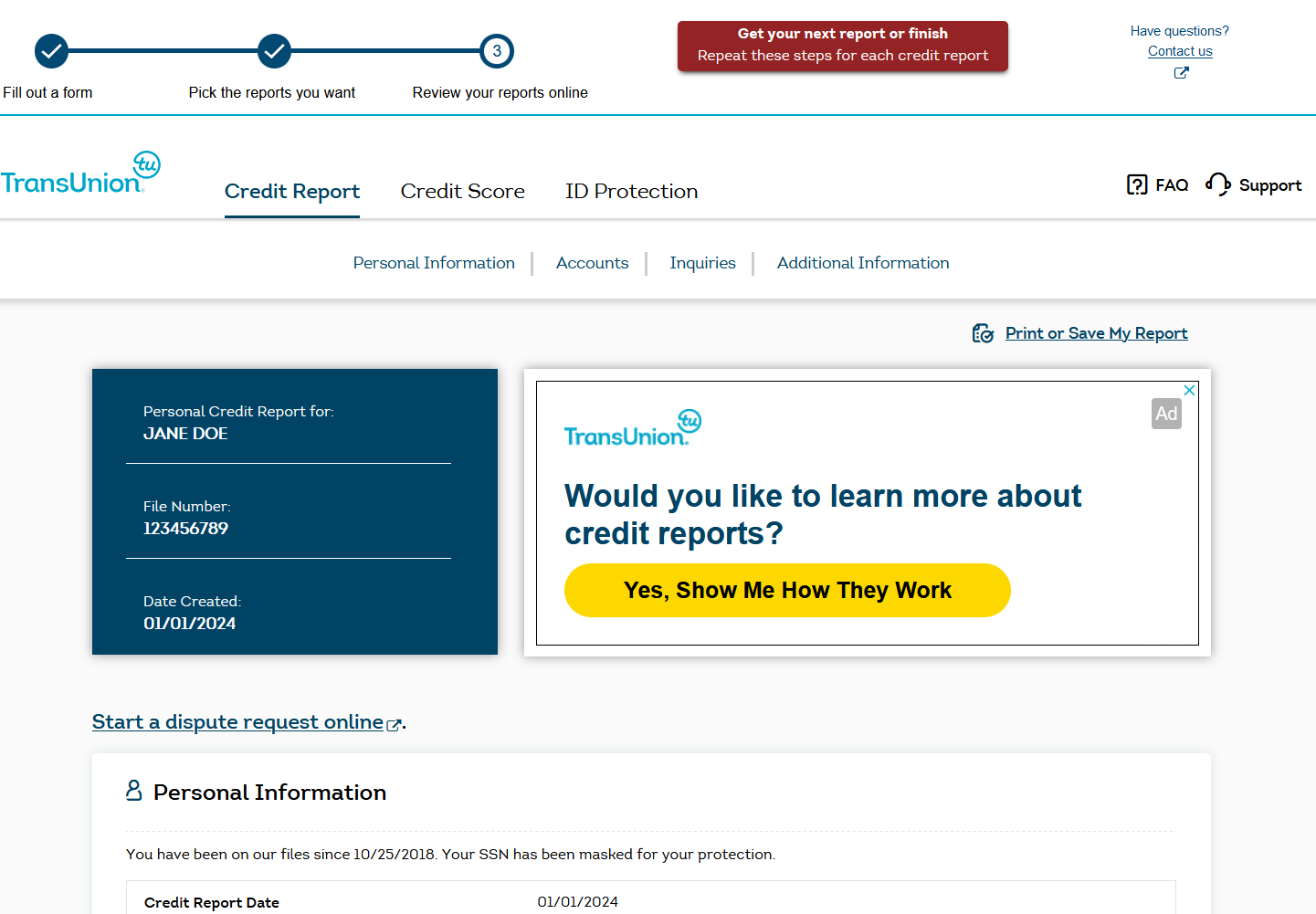
If you've made it this far, you should now be looking at your TransUnion credit report. Scrolling down the page, you should see some personal information (name, address, etc.), your accounts (credit card, auto loans, mortgage, etc.), inquiries (both hard and soft) and some other details if present in your report (collections, bankruptcies, etc.).
10. Download your TransUnion credit report
Close to the beginning of the credit report, you should notice a link with the title 'Print or Save my Report'. What will happen when you click on the link will depend on your browser, as well the software and settings you have associated with pdf files. Either way, you should have an option to save the credit report as a pdf somewhere on your computer or phone.
11. Get next report or finish
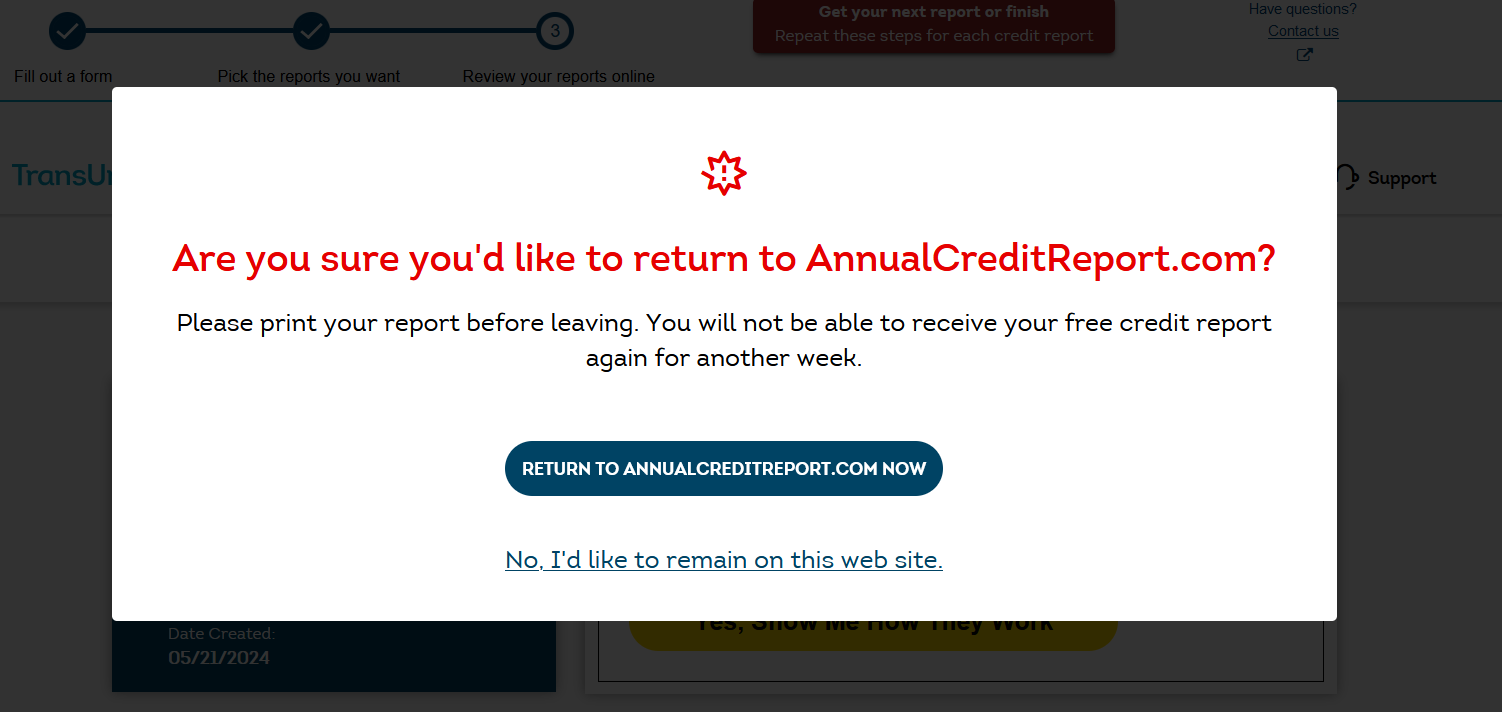
Once you're done exploring your credit file, you should click on 'Get your next report or finish'. You must click on this text, as the rest of the button is not responsive. A popup should appear asking 'Are you sure you'd like to return to AnnualCreditReport.com?'. You should click 'RETURN TO ANNUALCREDITREPORT.COM NOW'. If you wish to return to your TransUnion credit report, then you should click 'No I'd like to remain on this website'. The terminology is a little confusing, as you likely feel you're still on annualcreditreport.com. As previously mentioned, you can think of the credit reports as distinct CRA websites embedded within annualcreditreport.com.
If you have opted to view your credit report from other CRAs, then you will repeat a similar process for each provider (step 5 onwards). You will not need to resubmit the personal information that you entered in step 3, which will be transmitted to the next CRA that you selected. If you only selected TransUnion, then you will be taken back to the annualcreditreport.com homepage.
12. Initiate Equifax credit report request
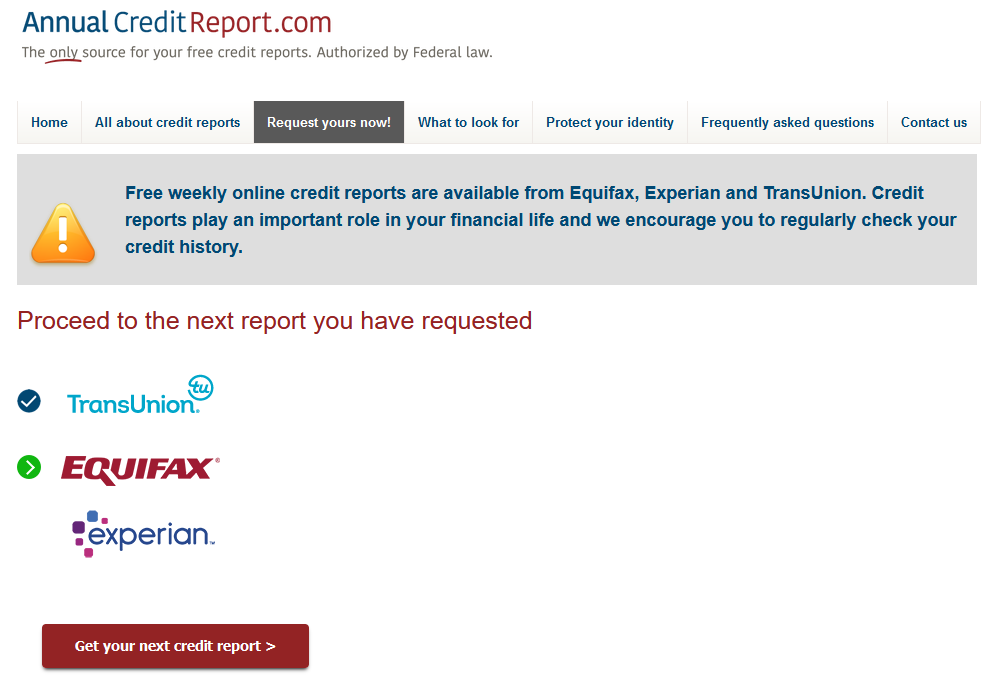
Assuming you followed our recommendation to select all three CRAs, with TransUnion complete, you should now be moving onto Equifax. Click on the red 'Get your next credit report' button to start the process.
13. Provide Additional Information for Identity Verification (Equifax)
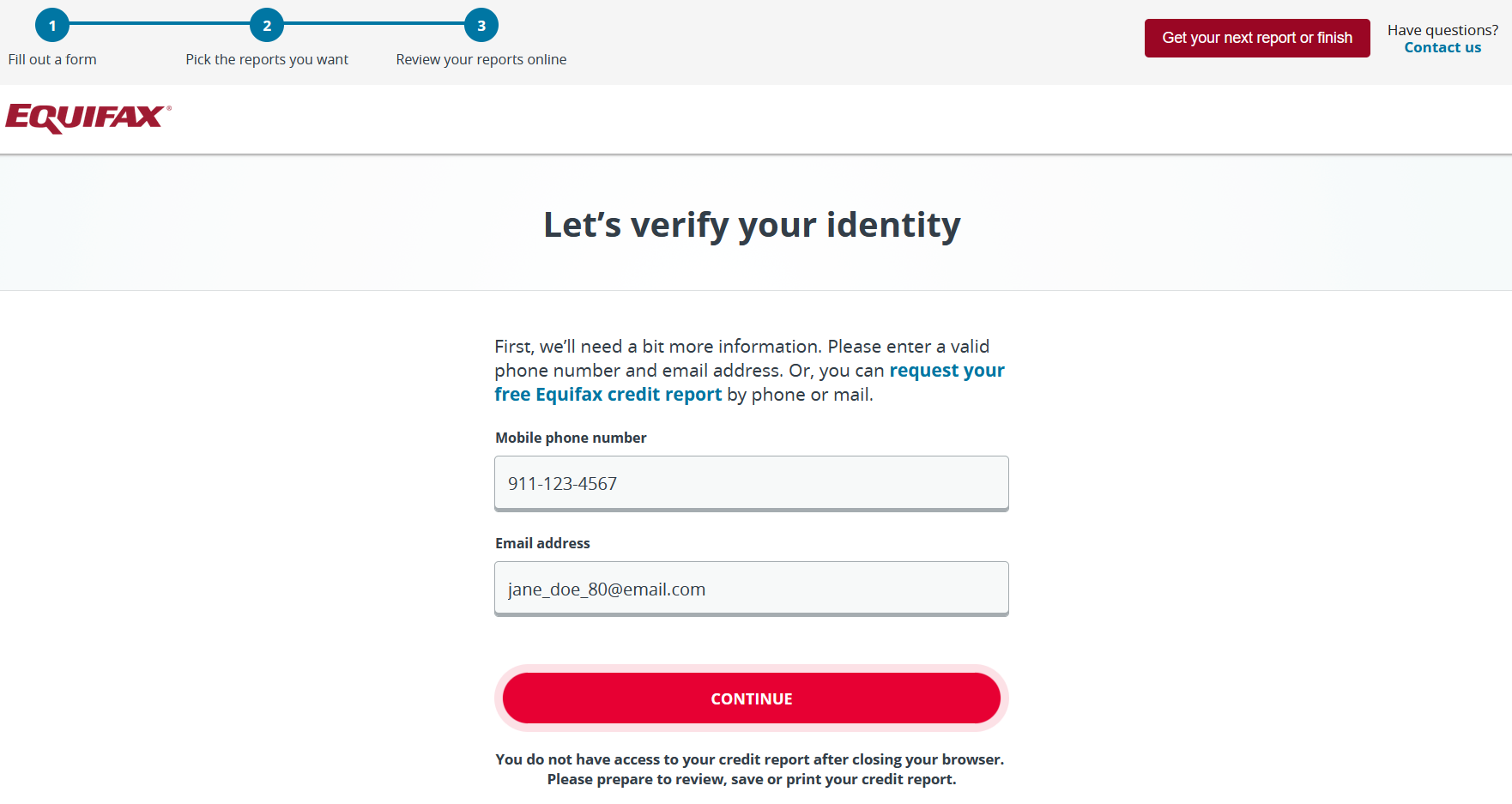
You should see the Equifax logo towards the top of the page. From this point onwards, you are communicating with Equifax via AnnualCreditReport.com. You can think of it as the Equifax website embedded within AnnualCreditReport.com.
Before they can deliver your credit report, you must provide your phone number and email address. You should have the phone nearby, as you'll need to enter a code that Equifax sends to you before you can access the credit report. Once you're ready, click the 'Continue' button at the bottom of the screen.
14. Confirm verification code permission
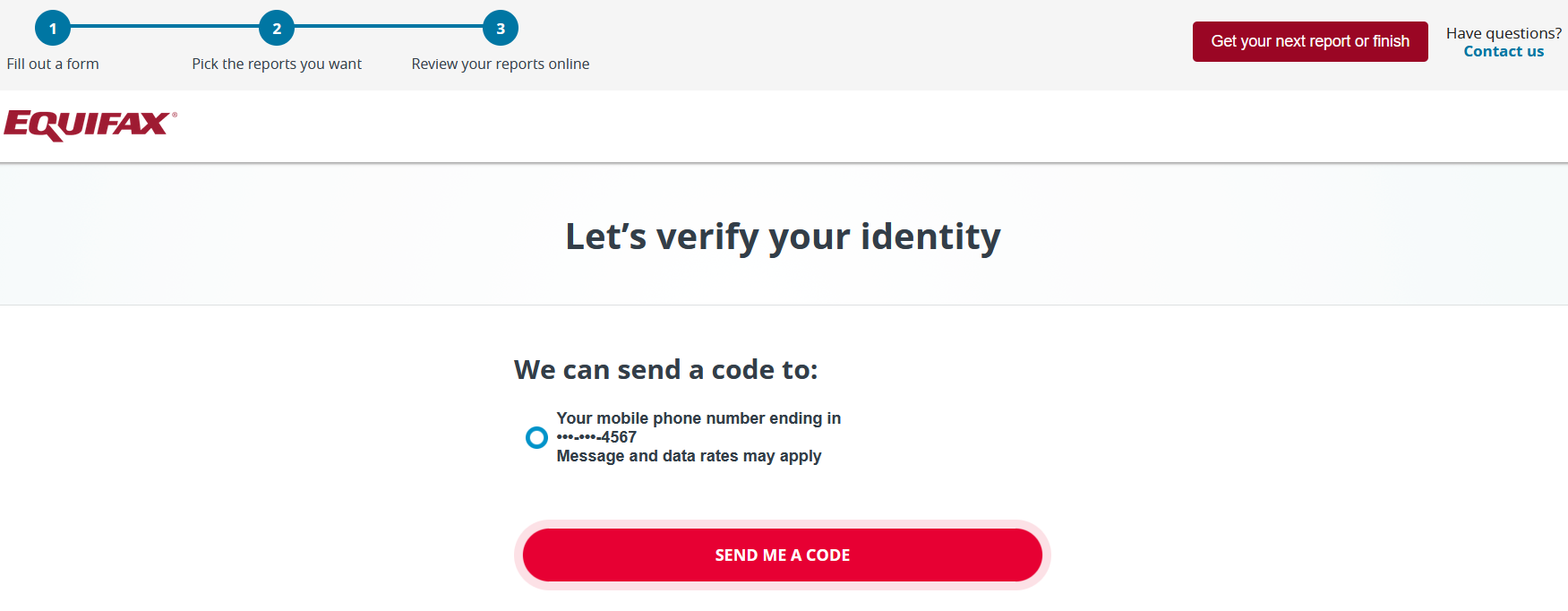
To confirm your identity, Equifax will send a code via text message to the phone number you provided on the previous page. If you're okay with this, click the red 'SEND ME A CODE' button.
15. Confirm verification code permission again
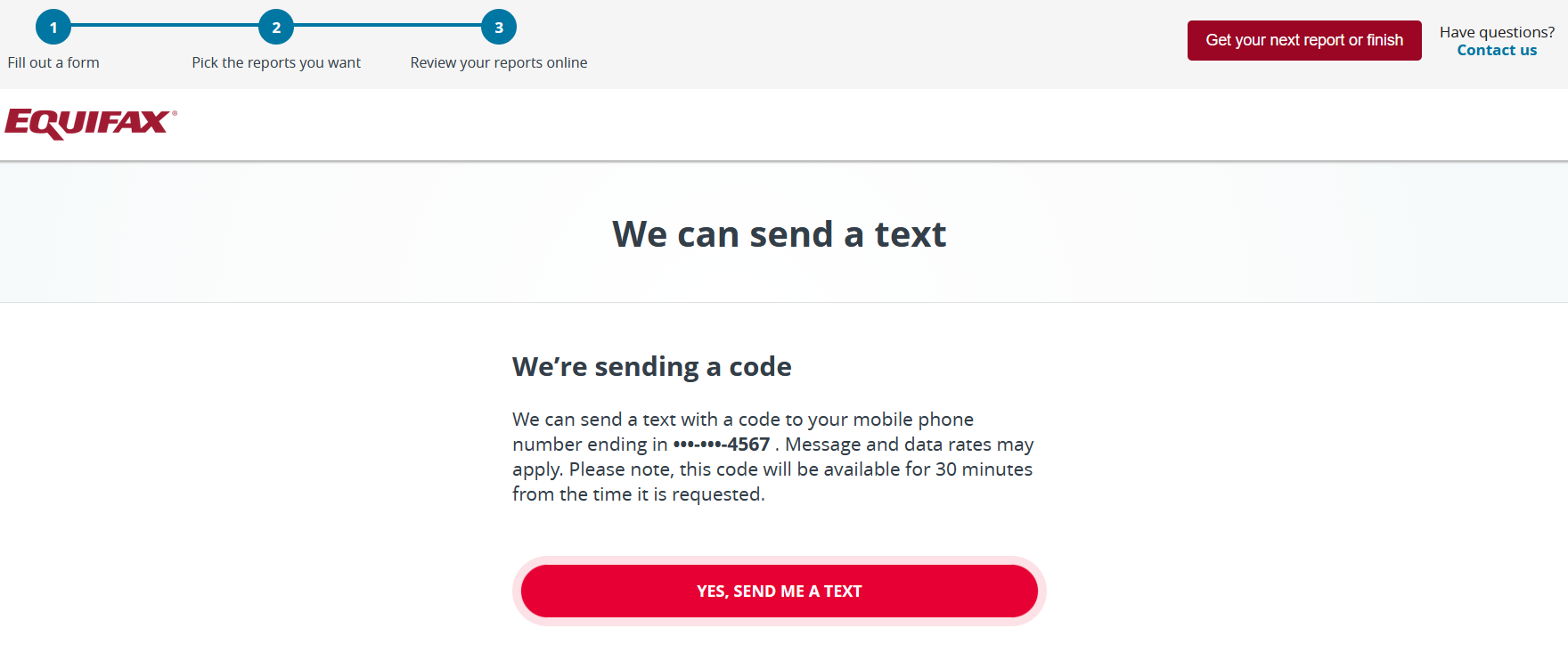
Similar to the previous step, you must give your permission again to Equifax to send a code to the phone number you provided in step 5.
16. Enter verification code
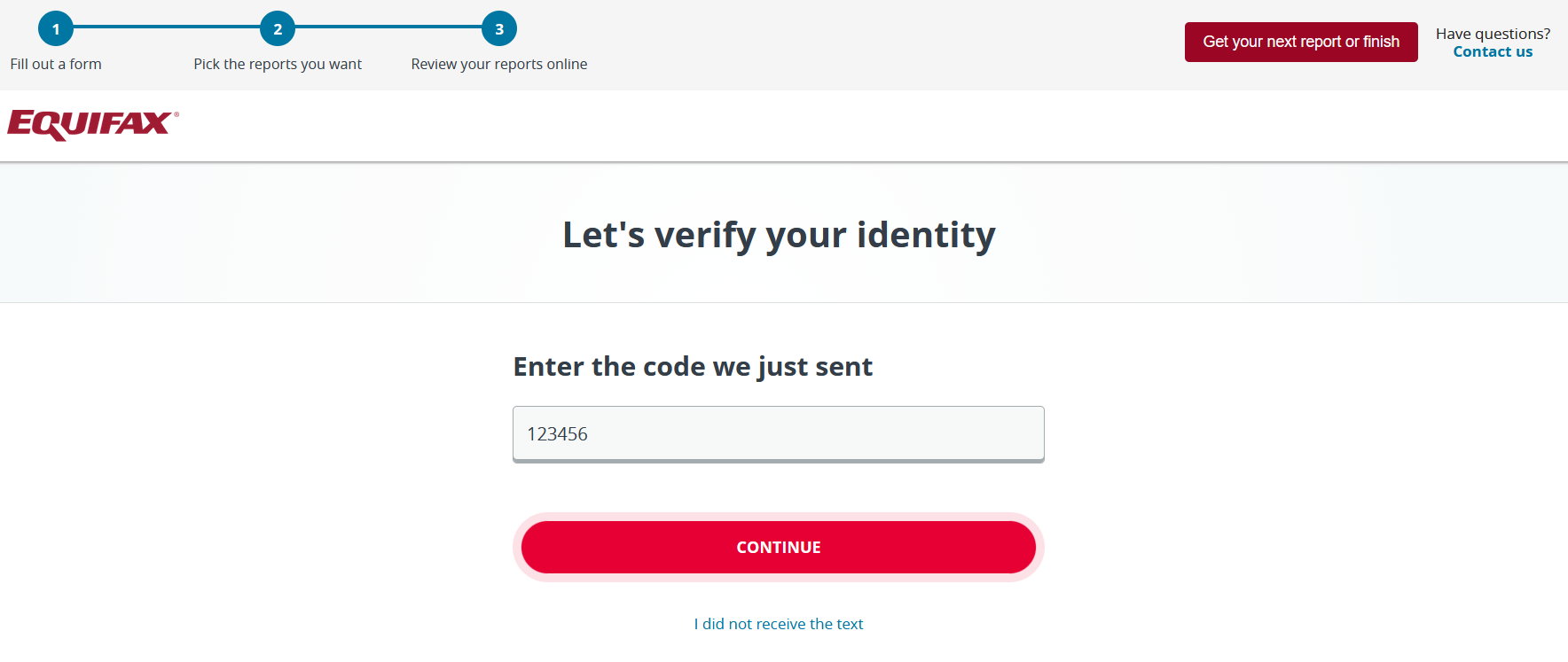
Within a short period of completing the previous step, you should have received a text message containing a 6-digit code. If that didn't happen, then you can request to have the code resent by clicking 'I did not receive the text'. Once you have the code, you should enter it in the field box positioned in the middle of the screen and then click the 'CONTINUE' button.
17. Successful identity verification
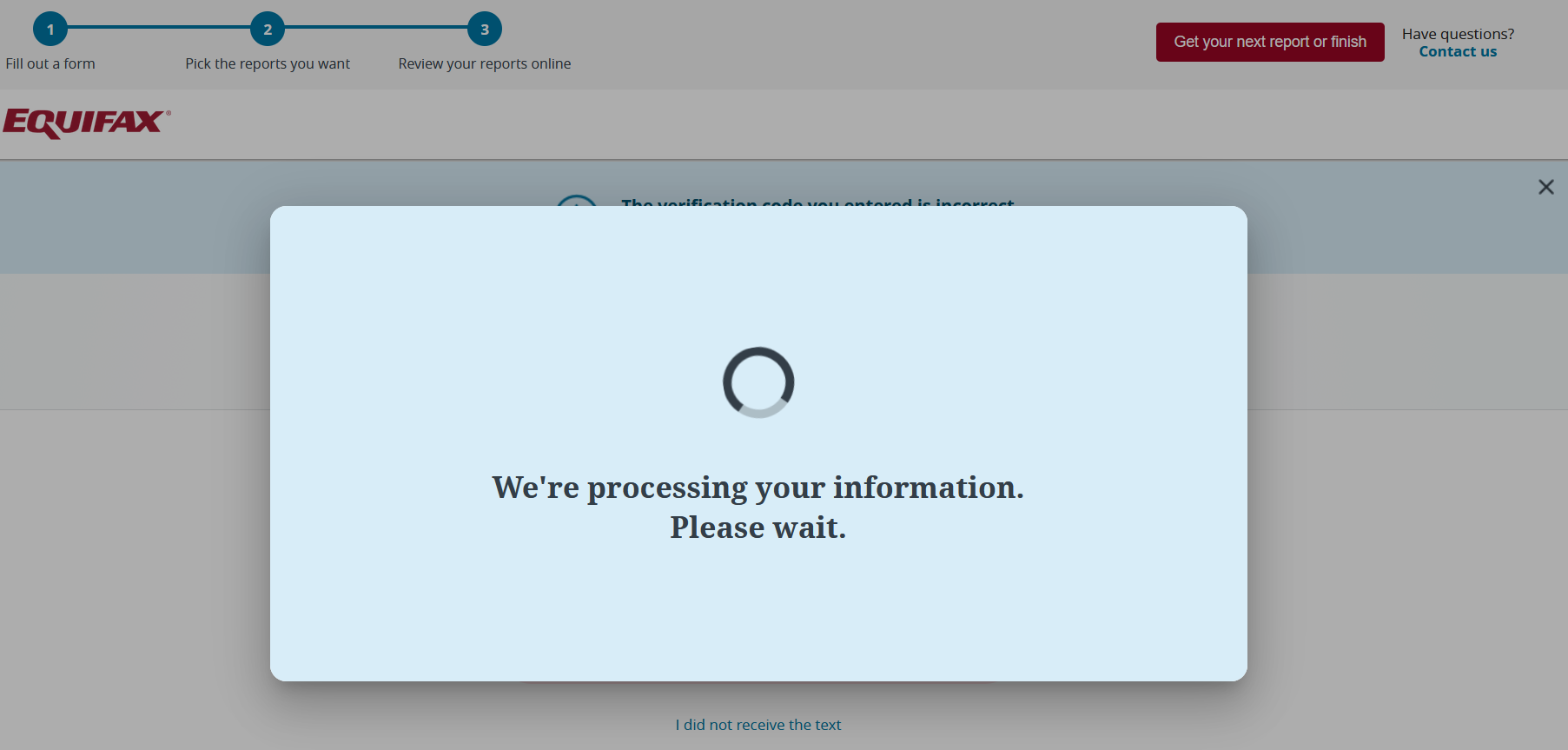
If that last step was performed successfully, then you should see message indicating that your credit report is being prepared. This should disappear after a few seconds.
18. View Equifax credit report
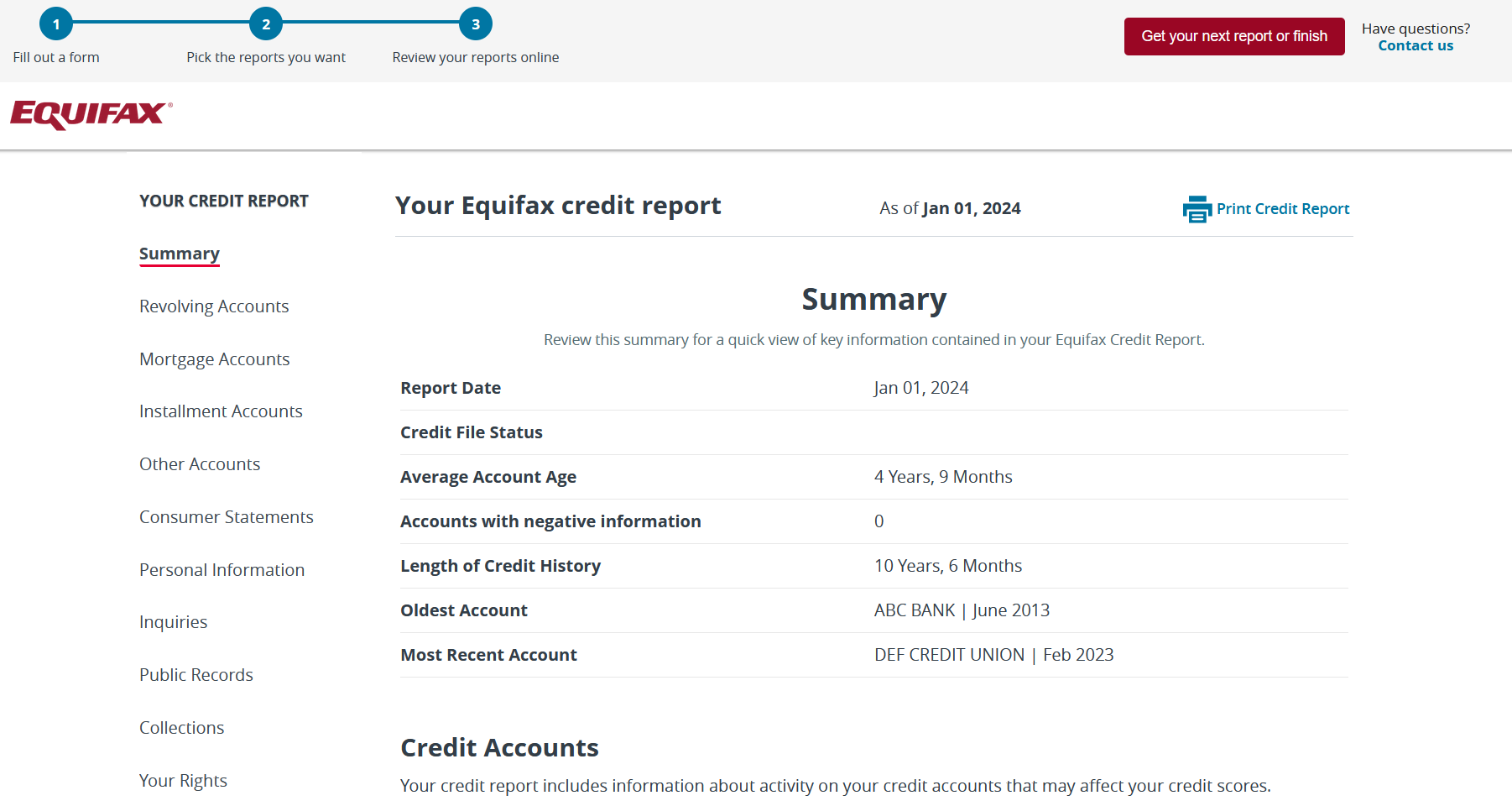
If you've made it this far, you should now be looking at your Equifax credit report. Scrolling down the page, you should see some personal information (name, address, etc.), your accounts (credit card, auto loans, mortgage, etc.), inquiries (both hard and soft) and some other details if present in your report (collections, bankruptcies, etc.).
19. Download your Equifax credit report
Close to the beginning of the credit report, you should notice a link with the title 'Print Credit Report'. What will happen when you click on the link will depend on your browser, as well the software and settings you have associated with pdf files. Either way, you should have an option to save the credit report as a pdf somewhere on your computer or phone.
20. Get next report or finish
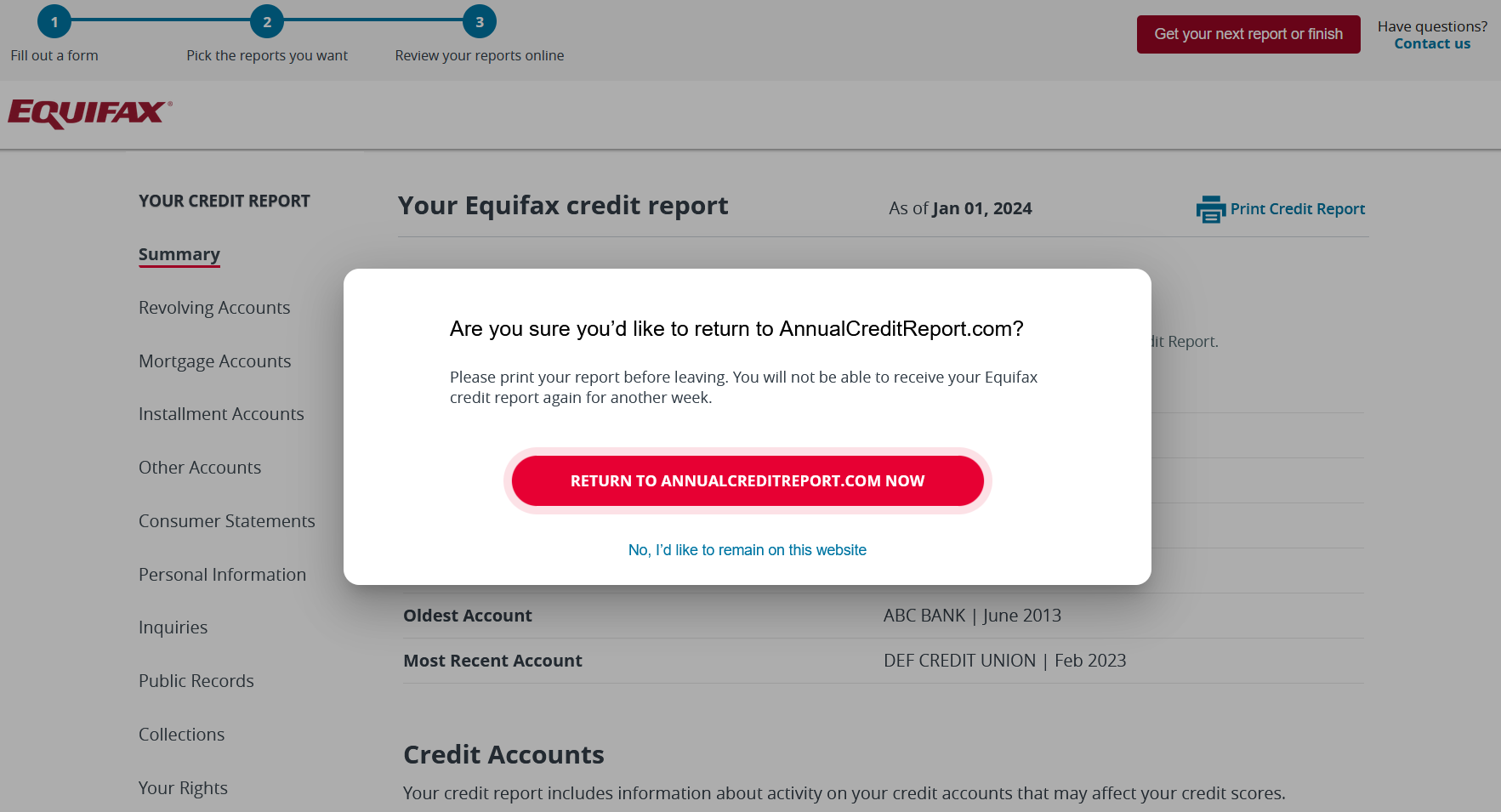
Once you're done exploring your credit file, you should click on 'Get your next report or finish'. A popup should appear asking 'Are you sure you'd like to return to AnnualCreditReport.com?'. You should click 'RETURN TO ANNUALCREDITREPORT.COM NOW'. If you wish to return to your Equifax credit report, then you should click 'No I'd like to remain on this website'. The terminology is a little confusing, as you likely feel you're still on annualcreditreport.com. As previously mentioned, you can think of it as looking at an Equifax website embedded within annualcreditreport.com.
If you have opted to view your credit report from other CRAs, then you will repeat a similar process for each provider. As before, you will not need to resubmit the personal information that you entered in step 3, which will be transmitted to the next CRA- Experian.
21. Initiate Experian credit report request
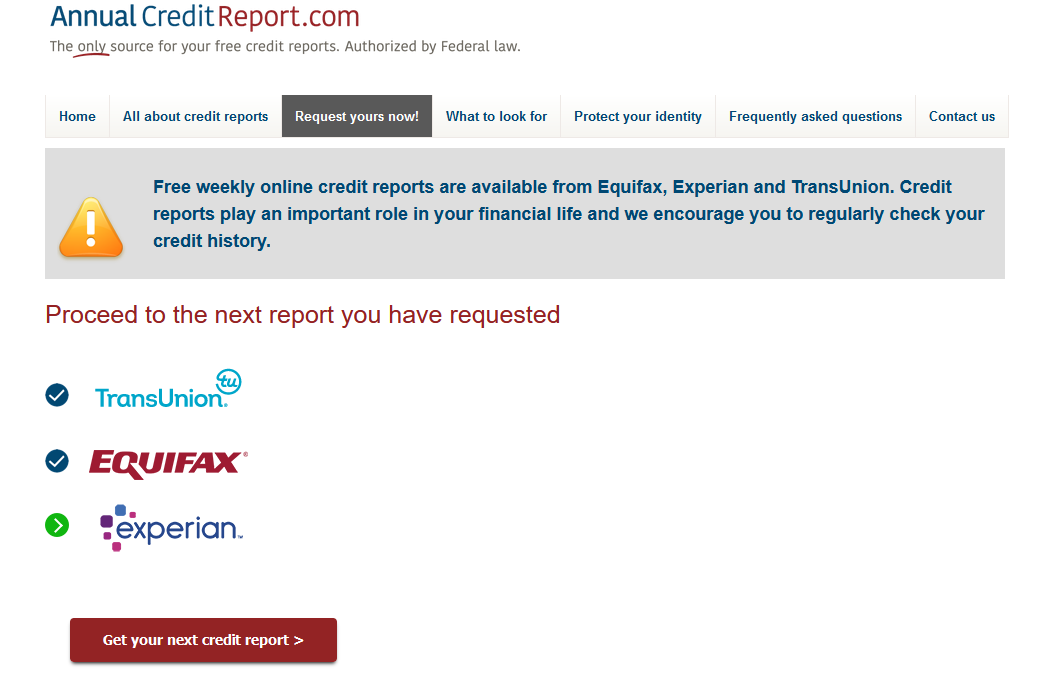
Assuming you followed our recommendation to select all three CRAs, with TransUnion and Equifax now complete, you should now be moving onto Experian. Click on the red 'Get your next credit report' button to start the process.
22. Provide Additional Information for Identity Verification (Experian)
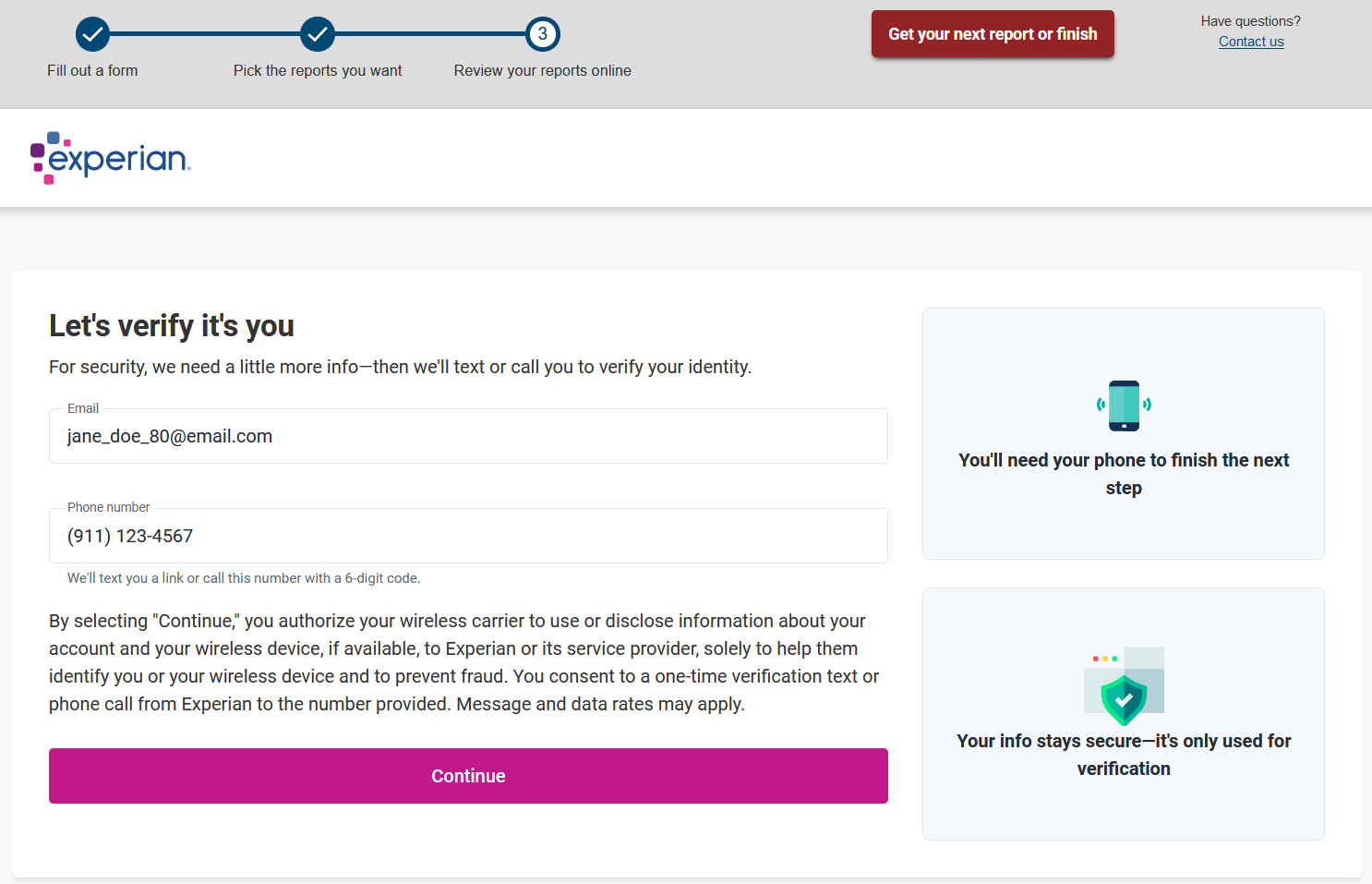
You should see the Experian logo towards the top of the page. From this point onwards, you are communicating with Experian via AnnualCreditReport.com. You can think of it as the Experian website embedded within AnnualCreditReport.com.
Before they can deliver your credit report, you must provide an email address and phone number. You should have the phone nearby, as you'll need to enter a code that Experian sends to you before you can access the credit report. Once you're ready, click the 'Continue' button at the bottom of the screen.
23. Check your phone for message from Experian
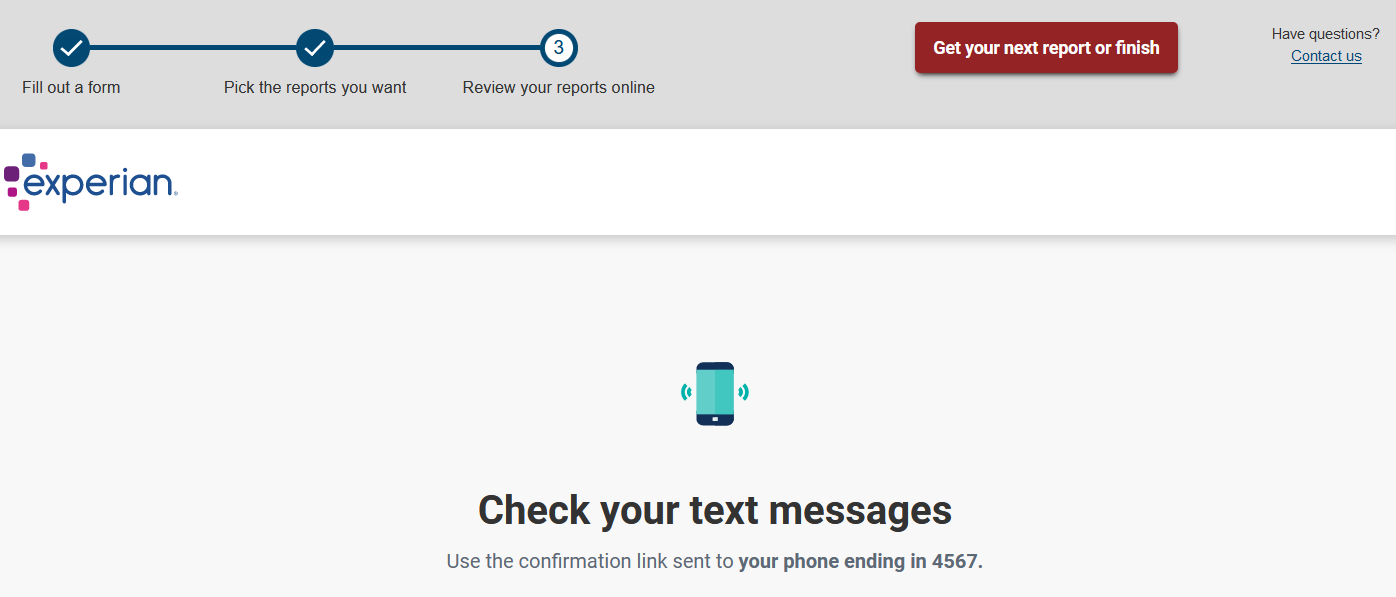
To confirm your identity, Experian will send a text message to the phone number you provided on the previous page, which will contain a unique temporary link for you. Click on the link and you should see the image below on your phone.
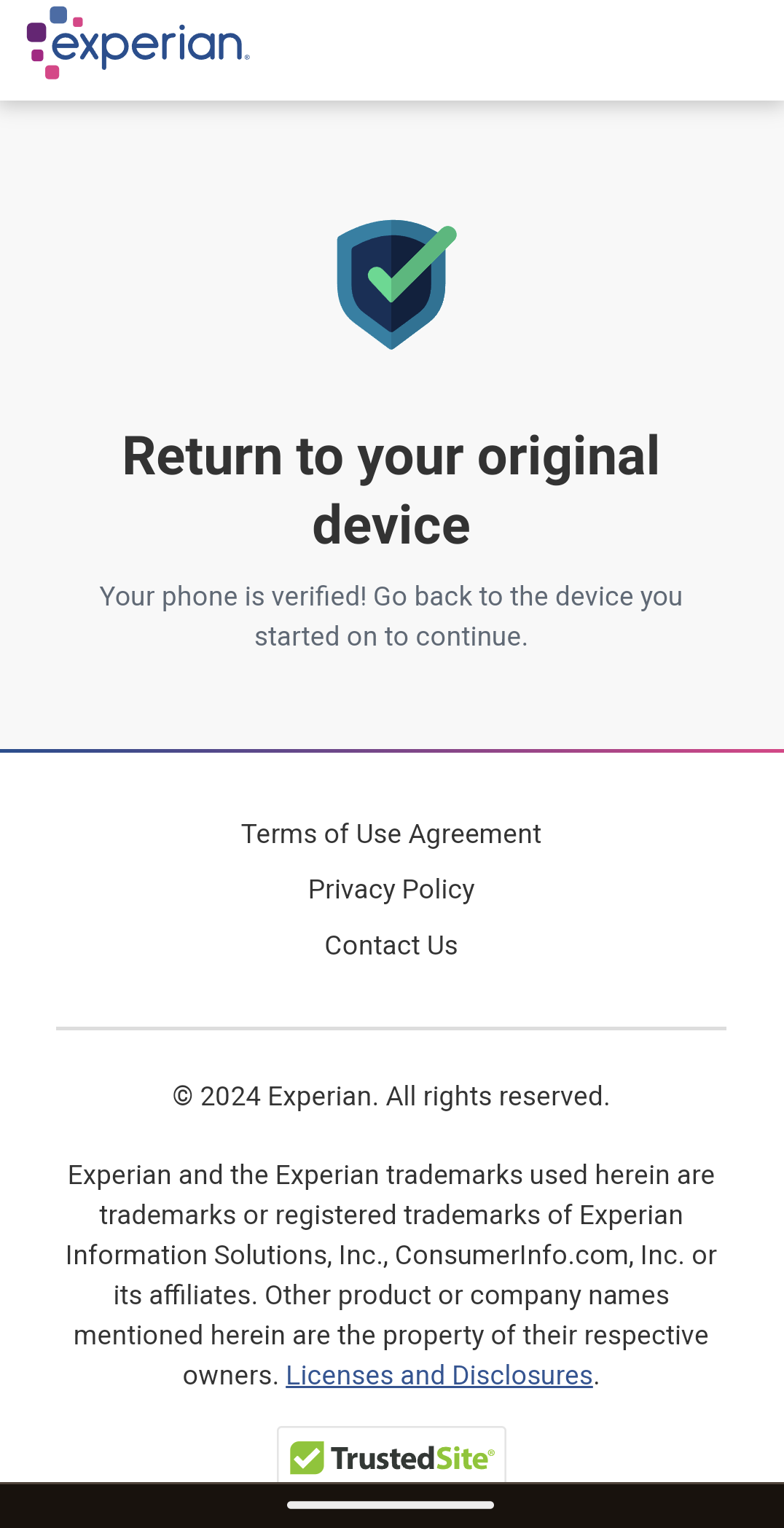
As the message says, you can return to the original device on which you started the Experian credit report request.
24. Confirm identity with questionnaire
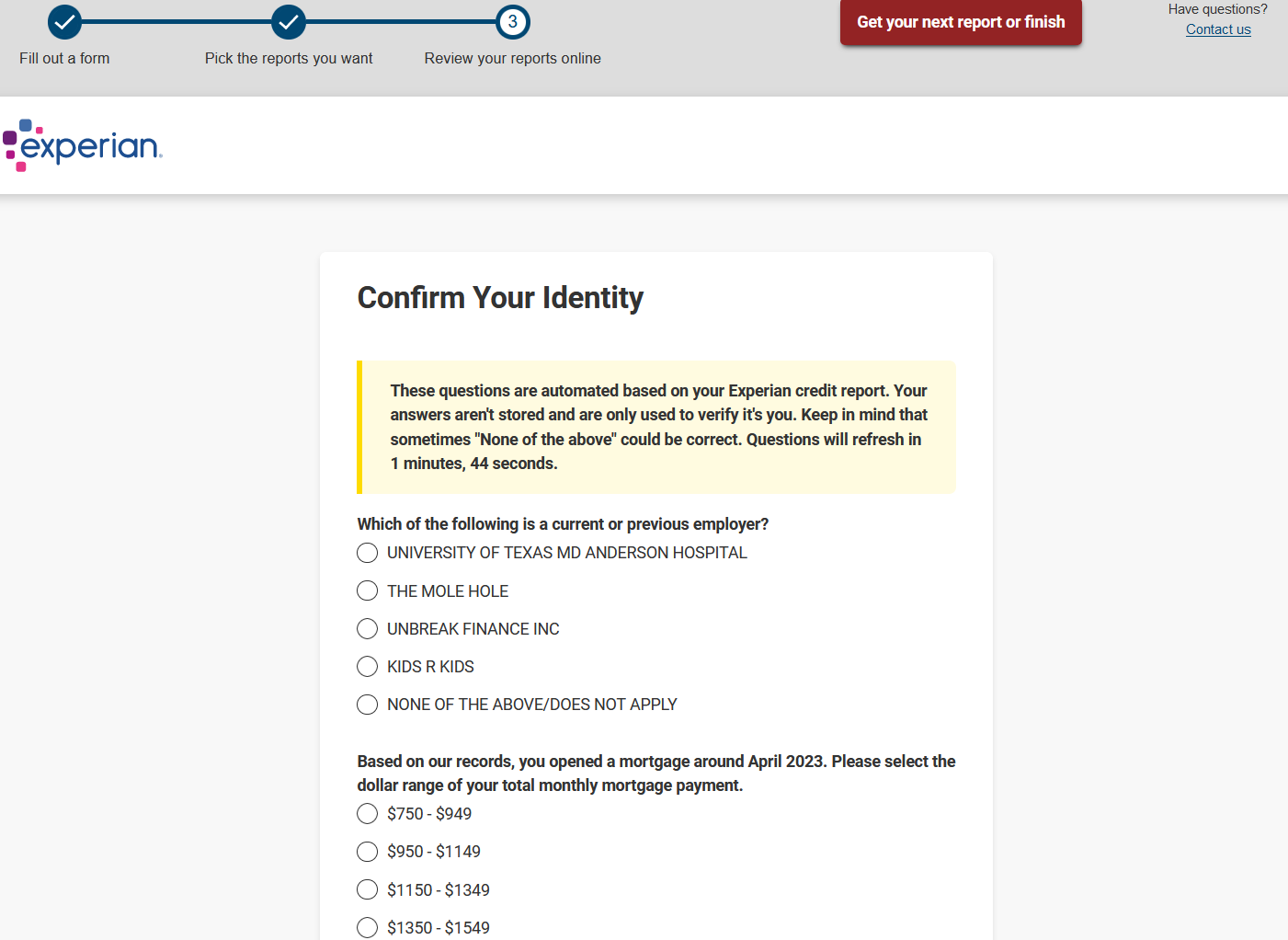
As an extra layer of verification, Experian require you to answer several multiple choice questions based on the content of your credit report. It's very common for the correct answer to NONE OF THE ABOVE/DOES NOT APPLY, especially if you have quite limited credit history. You have 5 minutes to complete this step.
25. View Experian credit report
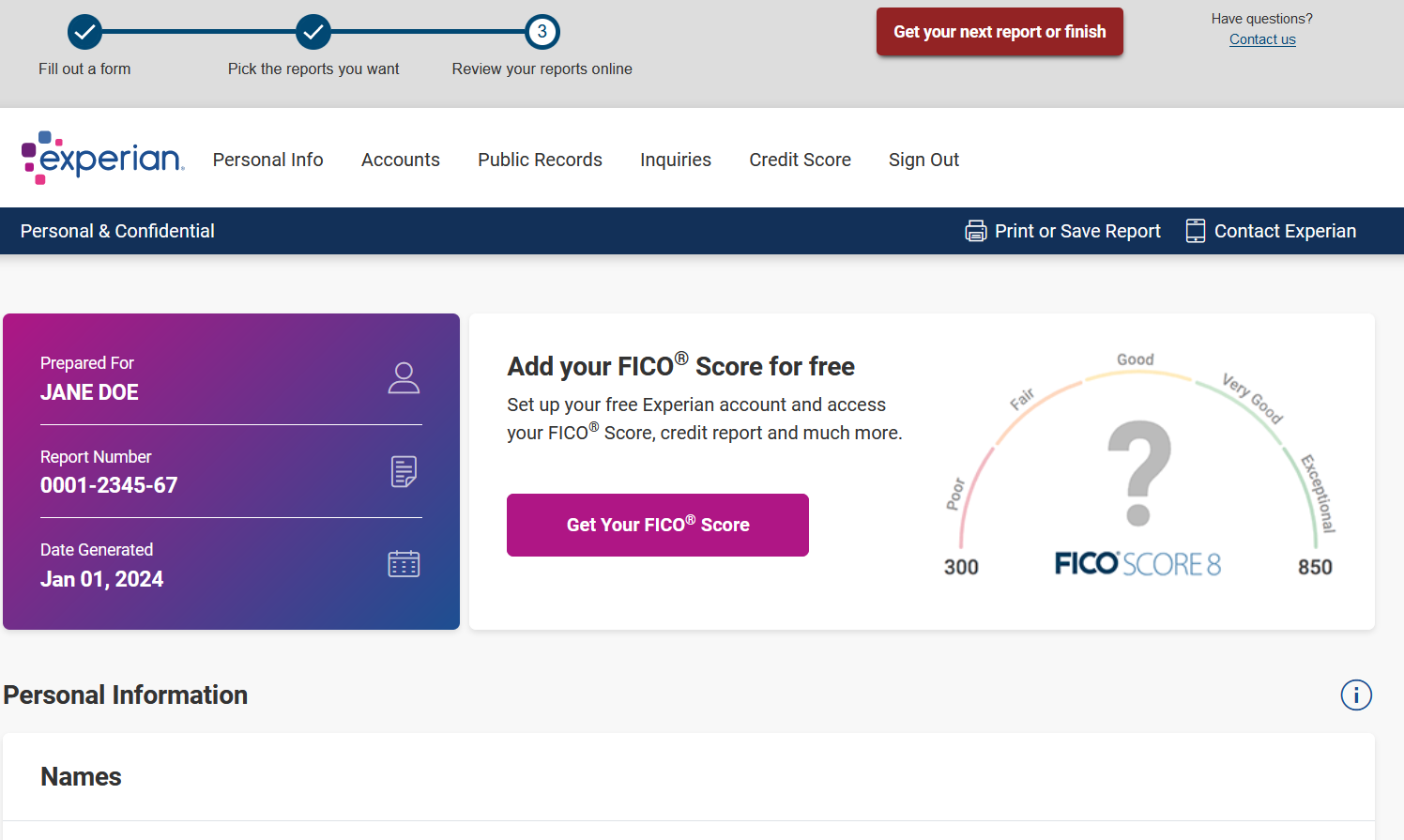
If you've made it this far, you should now be looking at your Experian credit report. Scrolling down the page, you should see some personal information (name, address, etc.), your accounts (credit card, auto loans, mortgage, etc.), inquiries (both hard and soft) and some other details if present in your report (collections, bankruptcies, etc.).
26. Download your Experian credit report
Close to the beginning of the credit report, you should notice a link with the title 'Print or Save Report'. What will happen when you click on the link will depend on your browser, as well the software and settings you have associated with pdf files. Either way, you should have an option to save the credit report as a pdf somewhere on your computer or phone.
27. Finish
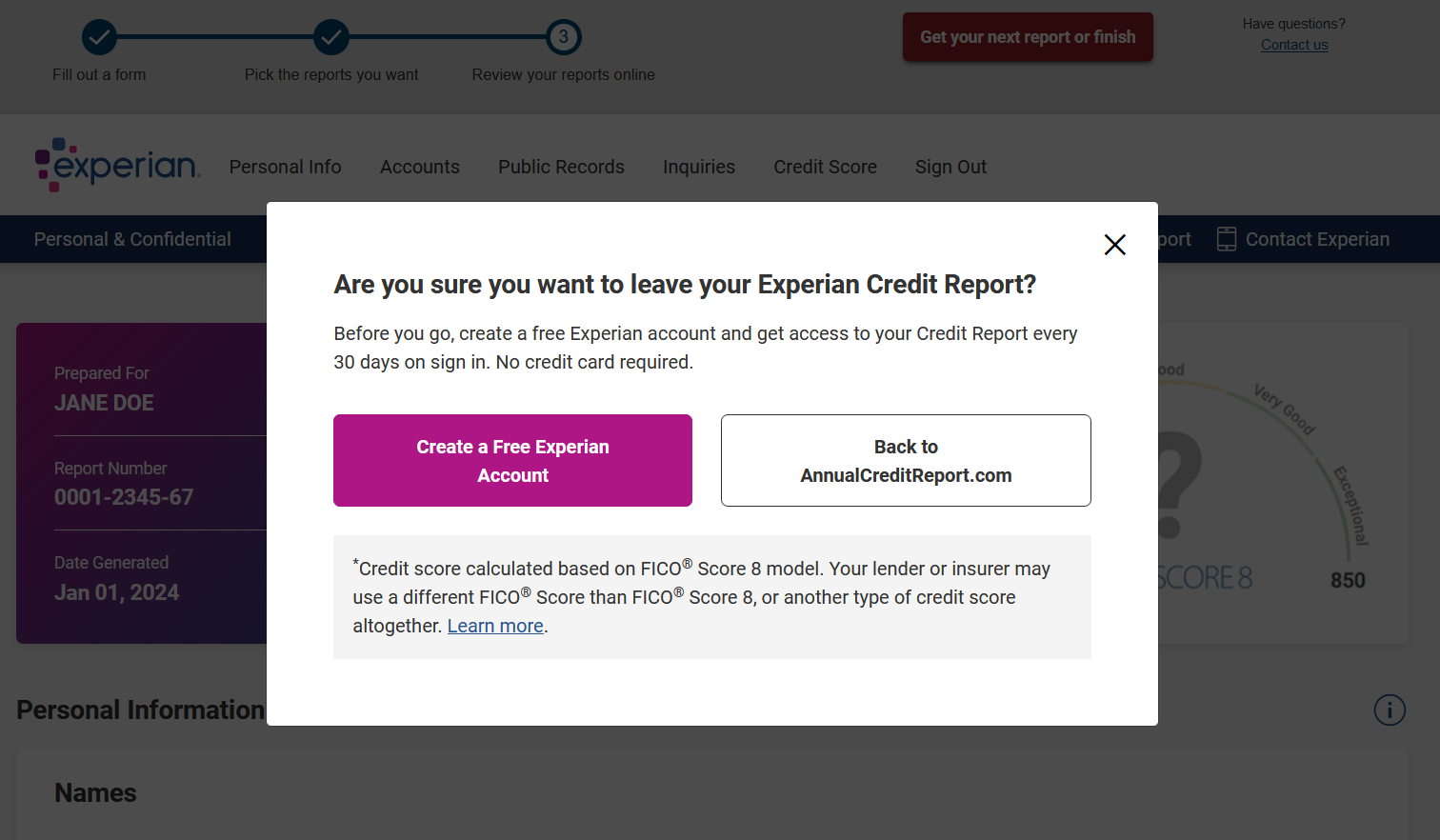
Once you're done exploring your credit file, you should click on 'Get your next report or finish'. A popup should appear asking 'Are you sure want to leave your Experian Credit Report?'. If you wish to return to your Experian credit report, then you should click on the 'X' in the corner of the popup. You have the option to create your own free Experian account, which offers some additional services (e.g. free FICO score), similar to many other personal finance websites.
If you're finished, then click 'Back to AnnualCreditReport.com' and you will be taken back to the annualcreditreport.com homepage.